

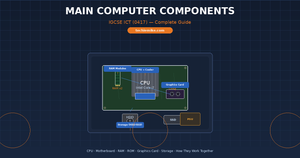
Your desktop computer is made up of several computer components working together. If you're studying for IGCSE ICT (0417), you need to know what each part does and how they connect. In this post, I'll walk through every main component you'll be tested on. For more details, check out Main Computer Components Guide ICT. For more details, check out 📝 Cambridge AS & A Level Computer Science June 2025 Paper 2 . For more details, check out 📝 Cambridge AS & A Level Computer Science June 2025 Paper 1 .
Here's what we'll cover:
- 🖥️ CPU — the brain of the computer
- 🔌 Motherboard — the central circuit board
- 💾 Main Memory — RAM and ROM (this is a common exam pitfall)
- 🎮 Graphics Card — what you see on screen
- 🎵 Sound Card — audio input and output
- 💽 Storage Devices — where your files live long-term
Let's get into it.
🖥️ CPU (Central Processing Unit)
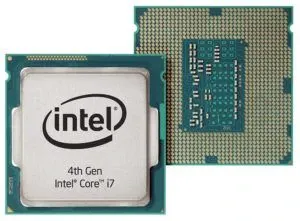
The CPU is the brain of your computer. Every single instruction your computer executes passes through the CPU. When you click a button, type a key, or open a program — the CPU is doing the work.
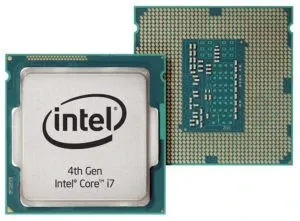
Inside the CPU
For IGCSE ICT, you need to know about these internal components:
- Control Unit (CU) — decodes instructions and controls the flow of data around the computer
- Arithmetic Logic Unit (ALU) — handles all calculations (addition, subtraction) and logical operations (comparing values)
- Registers — tiny, super-fast memory locations inside the CPU used for temporary storage during processing
- Cache — very fast memory on or near the CPU chip. Modern CPUs have multiple levels (L1, L2, L3). L1 is the fastest but smallest.
How the CPU Works
The CPU runs through something called the fetch-decode-execute cycle:
- Fetch — the CPU gets the next instruction from RAM
- Decode — the Control Unit figures out what the instruction means
- Execute — the ALU carries out the instruction
This cycle happens billions of times per second.
CPU Performance
Performance is measured in clock speed (Hertz). A 4 GHz CPU can perform 4 billion cycles per second. Higher clock speed generally means faster processing, but it's not the only factor.
- 1 MHz = 1 million cycles per second
- 1 GHz = 1 billion cycles per second
- Modern CPUs run at around 2–5 GHz
Modern CPUs also have multiple cores. A dual-core CPU has two processing units, a quad-core has four, and so on. More cores means the CPU can handle multiple tasks simultaneously.
💡 Common Exam Question: "Explain two factors that affect the performance of a CPU." Answer: Clock speed (higher = more instructions per second) and number of cores (more cores = can process multiple instructions at once).
I've been teaching this for over a decade, and the number one thing students get wrong is thinking more cores always equals better performance. Not all software can use multiple cores — a single-core program won't run any faster on an 8-core CPU than a 2-core one.
The CPU generates a lot of heat, which is why it's always covered by a heatsink and fan (or liquid cooler).
🔌 Motherboard
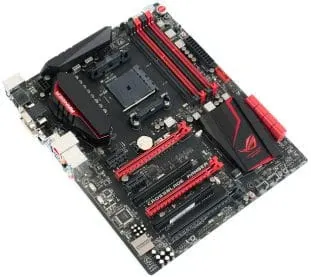
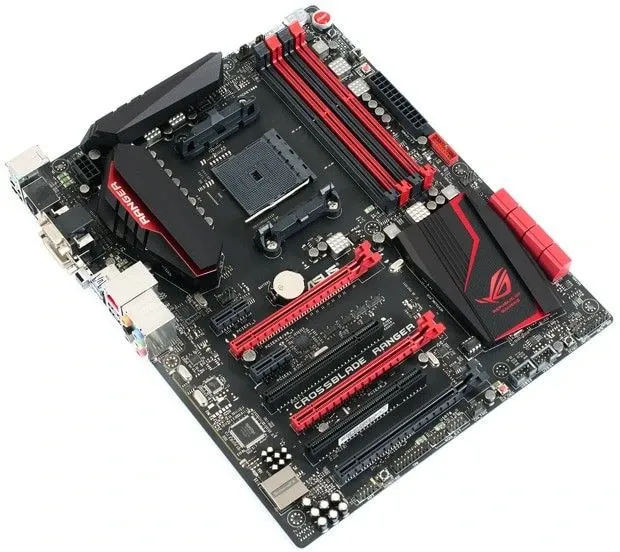
The motherboard is the main printed circuit board (PCB) in your computer. Every other component plugs into it. Think of it like the nervous system — it carries data and power between all the parts.
What's on a Motherboard?
- CPU socket — where the CPU sits. The socket type must match the CPU.
- RAM slots (DIMM slots) — where RAM modules are installed
- Expansion slots (PCI, PCIe x16) — for graphics cards, sound cards, network cards
- Chipset — manages data flow between the CPU, RAM, storage, and peripherals
- BIOS/UEFI chip — contains the ROM (firmware) that starts the computer
- SATA connectors — for connecting hard drives and SSDs
- M.2 slots — for modern NVMe SSDs (much faster than SATA)
- Power connector — supplies electricity from the power supply unit
- I/O ports — USB, HDMI, Ethernet, audio jacks on the back panel
- CMOS battery — keeps the BIOS settings saved even when the computer is off
💡 Exam Tip: You won't need to memorise every slot on the motherboard, but you should be able to identify the CPU socket, RAM slots, and expansion slots in a diagram.
Every component has its own designated slot. You can't plug a CPU into a RAM slot or a graphics card into a SATA port. That makes building a PC much easier than it sounds.
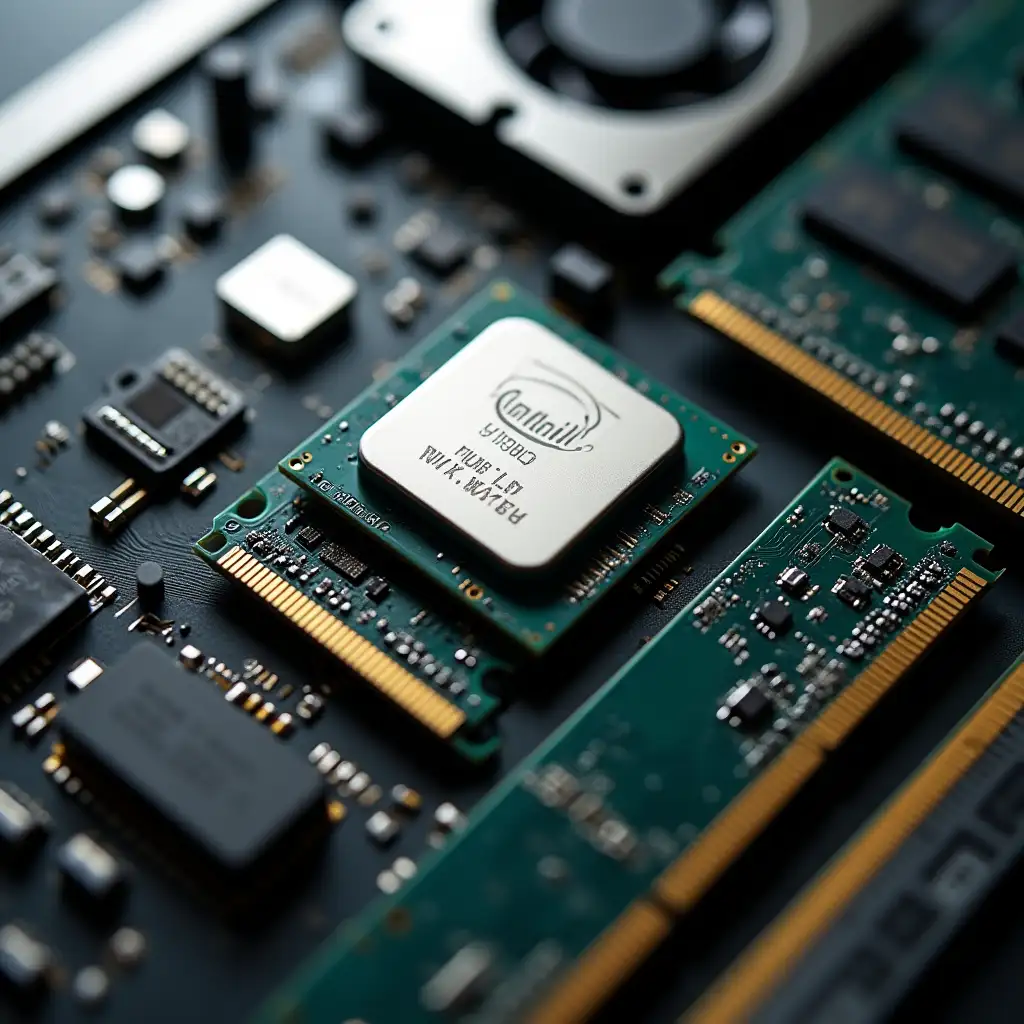
💾 Main Memory (Primary Storage)
This is where most students mess up in exams — and where the original version of this post had a critical error. Let me get this right.
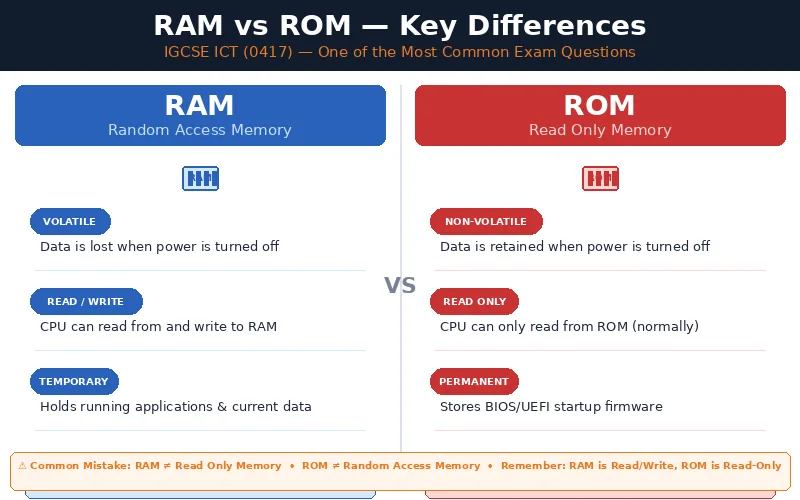
Your computer uses two types of main memory: RAM and ROM. They are NOT the same thing.
RAM — Random Access Memory
- VOLATILE — when the power goes off, everything in RAM is lost. This is why you lose unsaved work when the power cuts out.
- Read/Write — data can be read from and written to RAM constantly
- Holds the operating system, applications, and any data currently being used
- The more RAM you have, the more programs you can run at the same time without slowdown
- Types: DDR3, DDR4, DDR5
When you open Microsoft Word, it's loaded from your hard drive into RAM. When you type a document, it's stored in RAM. When you save, it's written from RAM back to the hard drive.
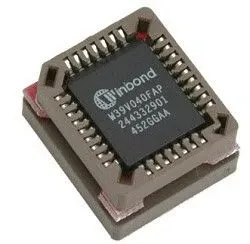
ROM — Read Only Memory
- NON-VOLATILE — the data stays even when the power is off
- Read Only — data cannot be modified under normal operation
- Contains the BIOS (Basic Input Output System) or UEFI firmware
- The first thing that runs when you press the power button — it runs the POST (Power On Self Test) and loads the operating system
- Much smaller than RAM — usually only a few megabytes
When you first start your computer, the CPU reads the instructions stored in ROM. This tells it to check the hardware is working, then find and load the operating system from your hard drive.
Comparison Table
\n\n| Feature | \nRAM | \nROM | \n
|---|---|---|
| Full Name | \nRandom Access Memory | \nRead Only Memory | \n
| Volatile? | \n✅ Yes — data lost on power off | \n❌ No — data retained | \n
| Read/Write? | \nBoth | \nRead only | \n
| Purpose | \nHolds active programs and data | \nHolds startup firmware (BIOS/UEFI) | \n
| Size | \nSeveral GB (4–32+ GB typical) | \nA few MB | \n
| Contents | \nChanges constantly | \nFixed at manufacture | \n
⚠️ This is a common exam question. If you're asked to "Explain the difference between RAM and ROM", you must mention that RAM is volatile and read/write, while ROM is non-volatile and read only. Just saying "RAM is temporary" is not enough for full marks.
Keywords (Corrected)
Here are the correct definitions for your revision:
- RAM = Random Access Memory (volatile, read/write — holds current data and programs)
- ROM = Read Only Memory (non-volatile, read only — holds BIOS/firmware)
- Volatile = data is lost when power is turned off
- Non-volatile = data is retained when power is turned off
- Primary storage = memory directly accessed by the CPU (RAM and ROM)
- BIOS = Basic Input Output System (stored in ROM)
- Firmware = software stored permanently in ROM/Flash memory
🎮 Graphics Card
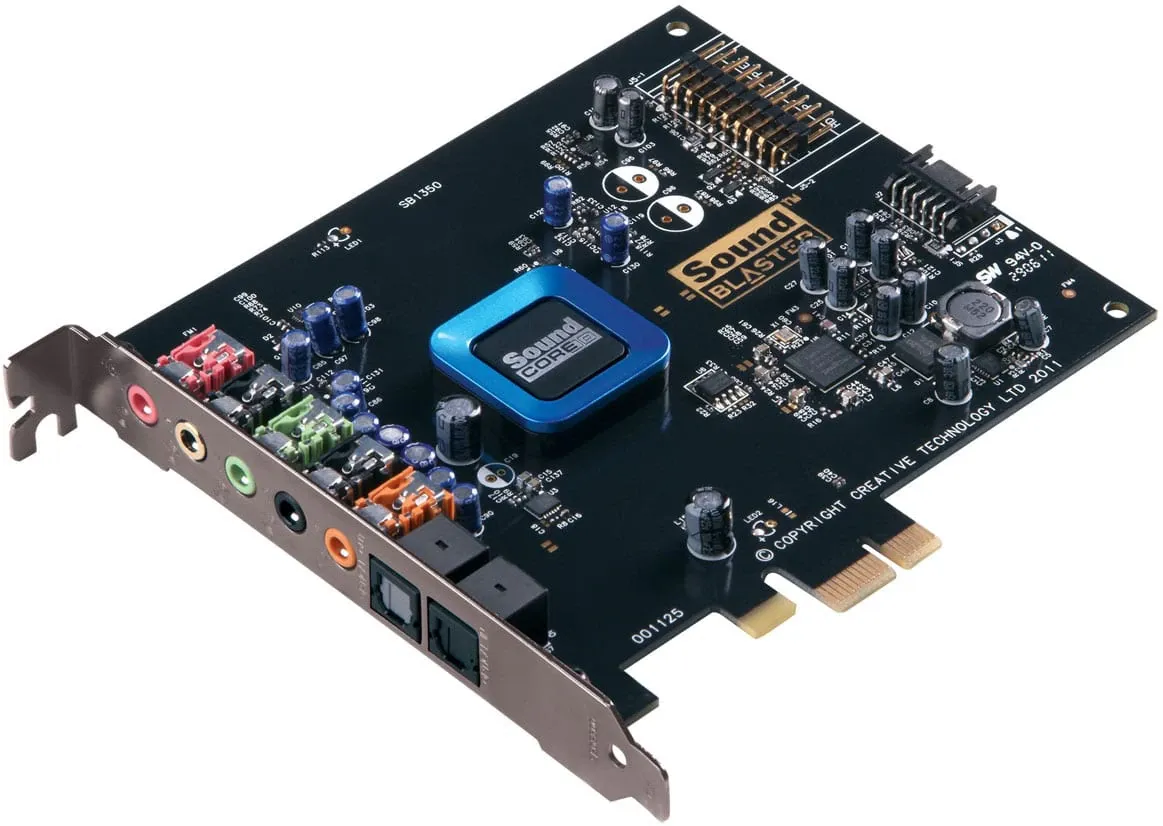
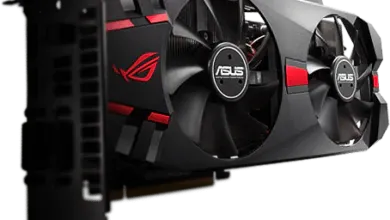
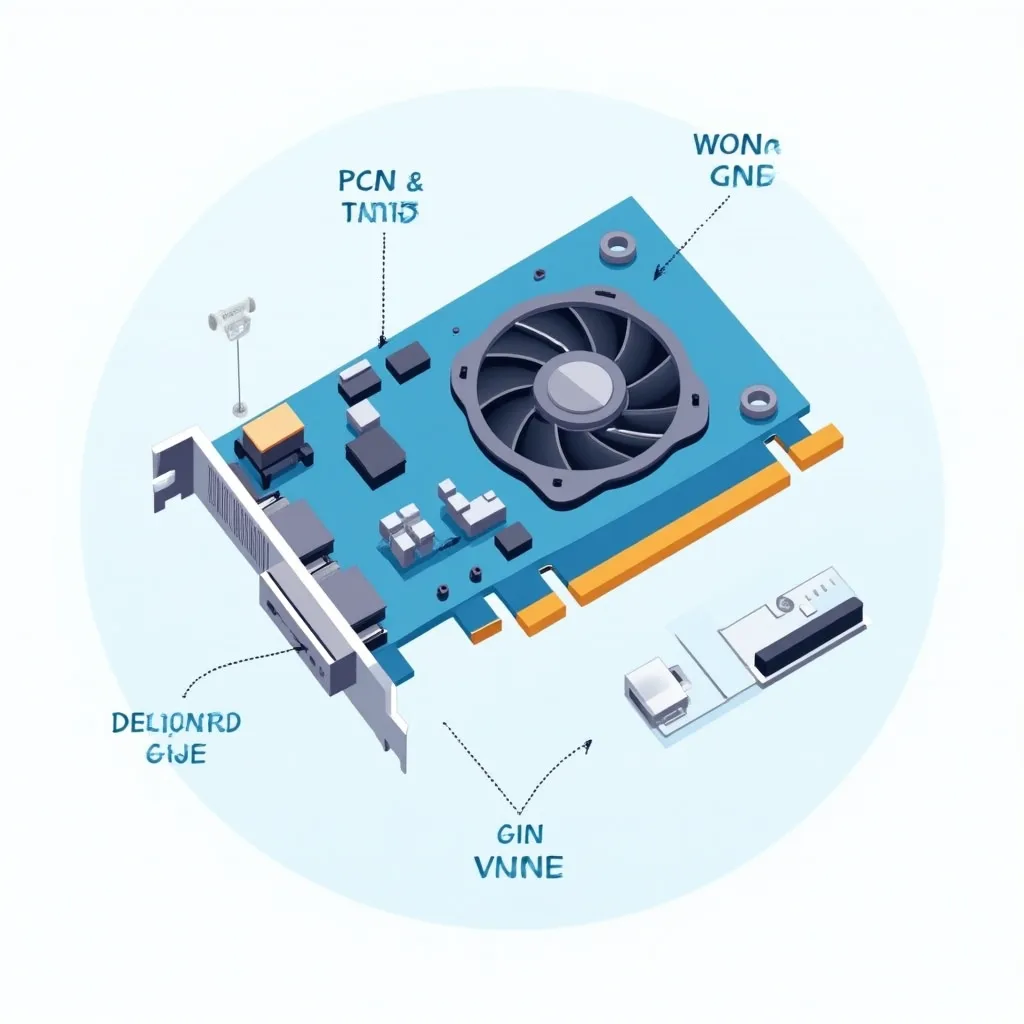
The graphics card (also called a GPU or video card) handles everything you see on your monitor. It processes images, videos, animations, and 3D graphics.
- Plugged into the motherboard via a PCIe x16 slot
- Has its own processor (GPU) and memory (VRAM) to handle graphics without using system RAM
- Most modern computers have onboard graphics built into the CPU or motherboard — fine for office work, web browsing, and watching videos
- Dedicated graphics cards are separate add-in cards with their own cooling, memory, and processing power — essential for gaming, video editing, and 3D modelling
If you're just using a computer for schoolwork, the built-in graphics will be perfectly fine.
🎵 Sound Card
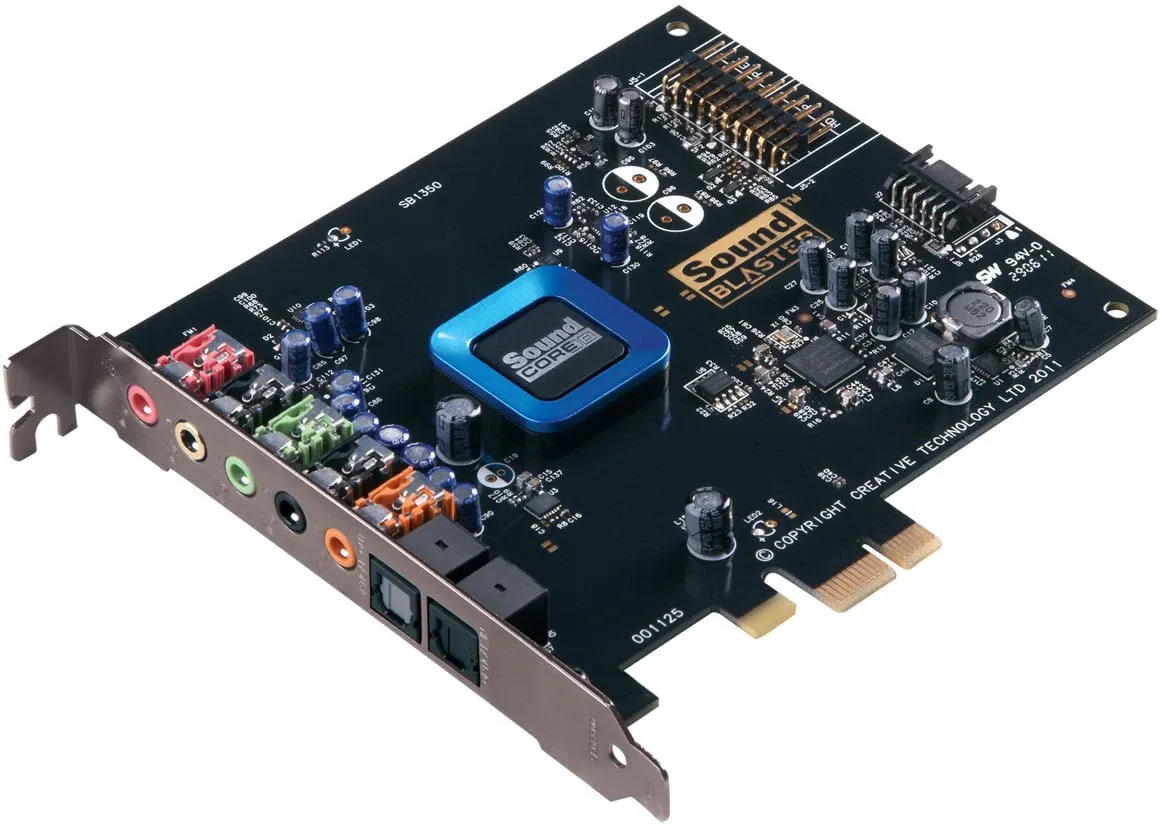
A sound card handles audio input and output — speakers, headphones, microphones.
- Most modern motherboards have audio built in, some offering 7.1 surround sound
- A dedicated sound card plugs into a PCIe slot
- Takes processing load off the CPU because it has its own processor
- Offers higher quality audio for music production and professional use
For IGCSE ICT, you mainly need to know that a sound card provides both input (microphone) and output (speakers/headphones).
💽 Storage Devices (Secondary Storage)
Storage devices hold your files when they're not being actively used. When you install a program, it's stored on your hard drive. When you launch it, it runs in RAM.
Hard Disk Drive (HDD)
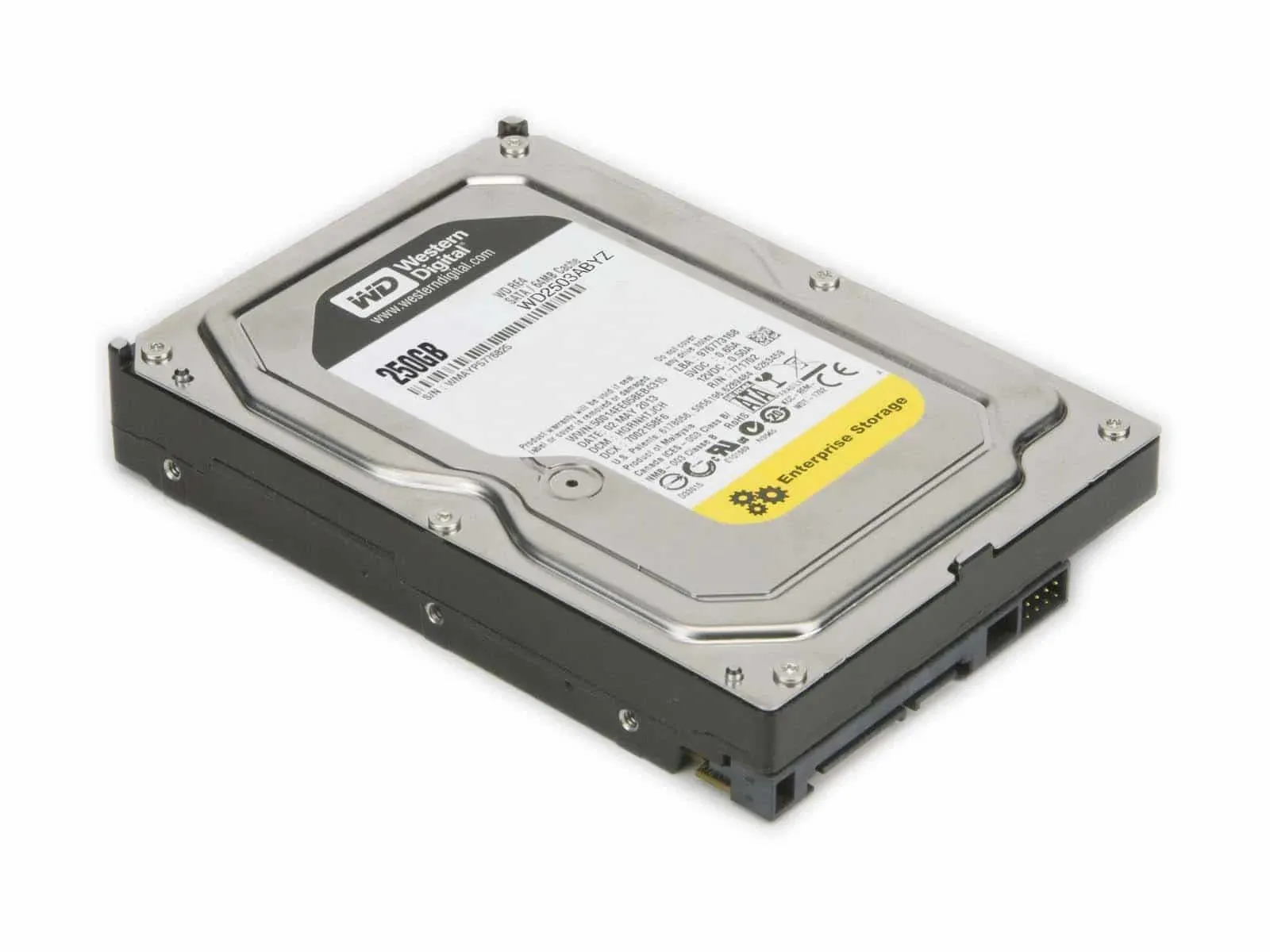
- Uses spinning magnetic platters and a read/write head — like a record player inside a sealed case
- Magnetic storage — data is written magnetically to the platters
- High capacity, low cost per GB
- Moving parts make it slower and more prone to physical damage
- Typical speed: 5,400 or 7,200 RPM
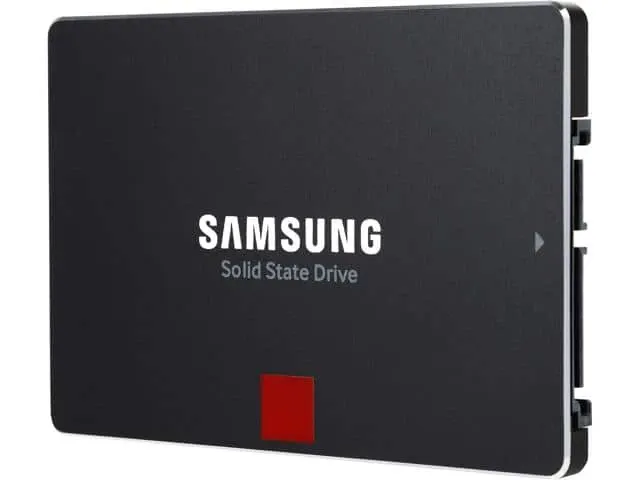
Solid State Drive (SSD)
- Uses flash memory (NAND) — no moving parts
- Much faster than HDD — boot times of seconds instead of minutes
- More durable (no moving parts to break)
- More expensive per GB than HDD
- Connects via SATA or faster M.2 (NVMe) slots
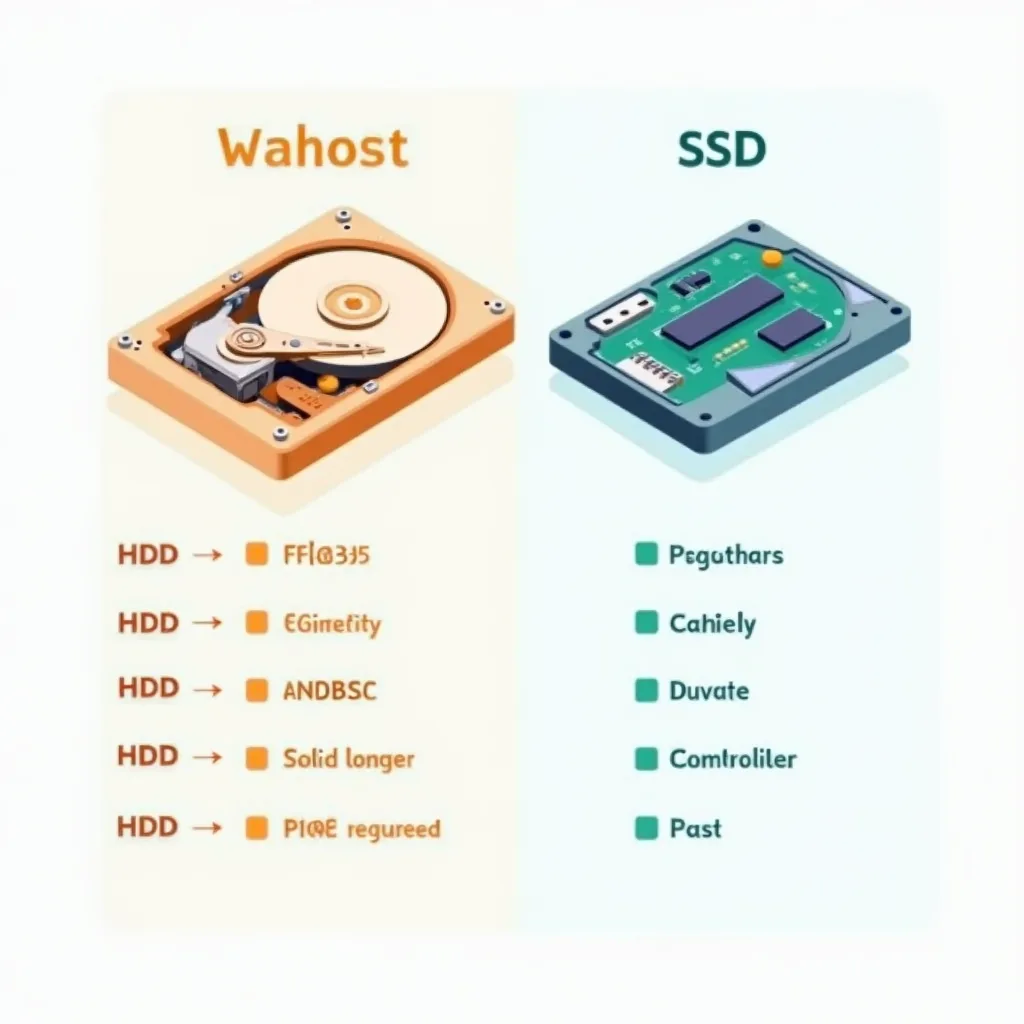
Comparison: HDD vs SSD
\n\n| Feature | \nHDD | \nSSD | \n
|---|---|---|
| Technology | \nMagnetic platters | \nFlash memory (NAND) | \n
| Moving parts? | \nYes | \nNo | \n
| Speed | \nSlower | \nMuch faster | \n
| Durability | \nLess durable | \nMore durable | \n
| Cost per GB | \nCheaper | \nMore expensive | \n
| Noise | \nAudible spinning | \nSilent | \n
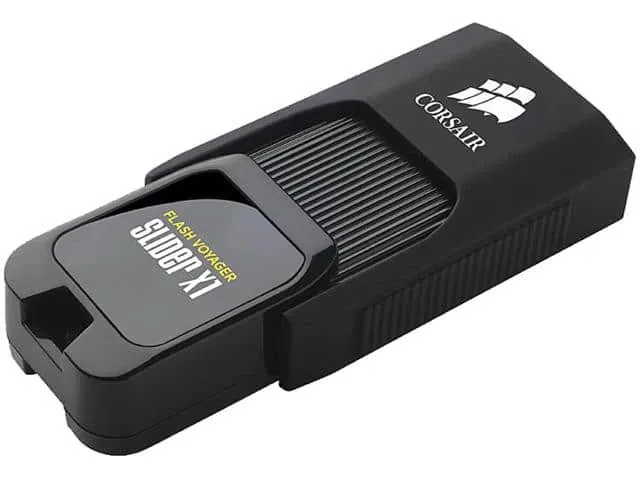
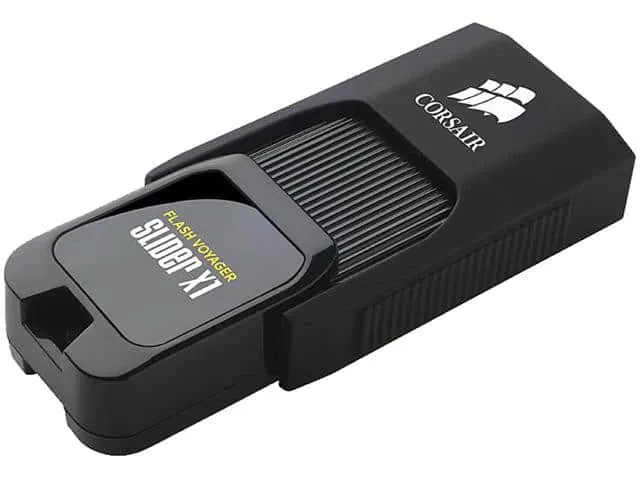
USB Flash Drive
- Portable solid state storage
- Plug into any USB port
- Great for transferring files between computers
Optical Storage
- CD (700 MB), DVD (4.7 GB), Blu-ray (25–128 GB)
- Uses a laser to read and write data by burning pits on the surface
- Types: ROM (read only, factory pressed), R (write once), RW (rewritable)
💡 Exam Tip: You'll often be asked to recommend a storage device for a specific scenario. A photographer backing up large files? An external HDD. A student carrying homework between school and home? A USB flash drive.
🔑 Summary of Key Terms
\n\n| Term | \nDefinition | \n
|---|---|
| CPU | \nCentral Processing Unit — processes instructions via the fetch-decode-execute cycle | \n
| Control Unit | \nDecodes instructions and controls data flow | \n
| ALU | \nArithmetic Logic Unit — performs calculations and logical comparisons | \n
| Motherboard | \nMain circuit board connecting all components | \n
| RAM | \nRandom Access Memory — volatile, read/write, holds active data | \n
| ROM | \nRead Only Memory — non-volatile, read only, holds BIOS/firmware | \n
| Volatile | \nData lost when power is off (RAM) | \n
| Non-volatile | \nData retained when power is off (ROM, HDD, SSD) | \n
| Primary storage | \nDirectly accessed by CPU (RAM + ROM) | \n
| Secondary storage | \nLong-term storage (HDD, SSD, USB, optical) | \n
| HDD | \nHard Disk Drive — magnetic, moving parts | \n
| SSD | \nSolid State Drive — flash memory, no moving parts | \n
| BIOS | \nBasic Input Output System — stored in ROM, runs at startup | \n
| Cache | \nVery fast memory between CPU and RAM | \n
| Clock speed | \nHow many cycles a CPU can execute per second (measured in GHz) | \n
Common Exam Questions
Here are the kinds of questions you'll see in the IGCSE ICT (0417) exam:
1. "Explain the difference between RAM and ROM" [4 marks]
You need to mention: RAM is volatile (data lost on power off) and can be read from and written to. ROM is non-volatile (data retained) and can only be read. RAM holds the operating system and currently running programs. ROM holds the BIOS/firmware.
2. "Describe the function of the CPU" [3 marks]
The CPU processes instructions using the fetch-decode-execute cycle. The Control Unit decodes instructions, the ALU performs calculations. The CPU has registers for fast temporary storage and cache memory for frequently used data.
3. "Give two differences between an HDD and an SSD" [2 marks]
HDD uses magnetic platters with moving parts, SSD uses flash memory with no moving parts. SSD is faster and more durable but more expensive per GB.
That covers all the main computer components you'll need for IGCSE ICT (0417). The key things to remember: RAM is volatile, ROM is not. Primary storage is directly accessed by the CPU, secondary storage is for long-term use. And yes — RAM and ROM are definitely NOT the same thing.
If you found this helpful, check out my other IGCSE ICT guides on the site.
