

A post hit the front page of Hacker News yesterday with a title that made a lot of people stop and stare: "A 10 year old Xeon is all you need." It racked up 685 points. The author ran Gemma 4 (26B) — one of Google's newest models — on a single Intel Xeon E5-2620 v4 from 2016. No GPU. No $10,000 workstation. A recycled server with 128 GB of DDR3 RAM and a CPU that was mid-range a decade ago.
Sound impossible? That's what I thought too. But after reading the post and testing on my own hardware, I can tell you: the "you need a gaming GPU for AI" myth is just that — a myth.
Here's what we'll cover:
- Why old hardware is surprisingly good at running LLMs
- The "memory wall" — and why it matters more than compute speed
- What models actually run on a $150 mini PC vs a 10 year old server
- How to set up Ollama and start running models in 10 minutes
- Cost comparison: old hardware vs cloud API pricing
- What to look for when buying old hardware for AI
Note: the mini PC results below are from my own testing. The Xeon 26B result comes from the Hacker News article that inspired this post.
Here's what I found.
Memory Bandwidth Is the Bottleneck, Not Compute
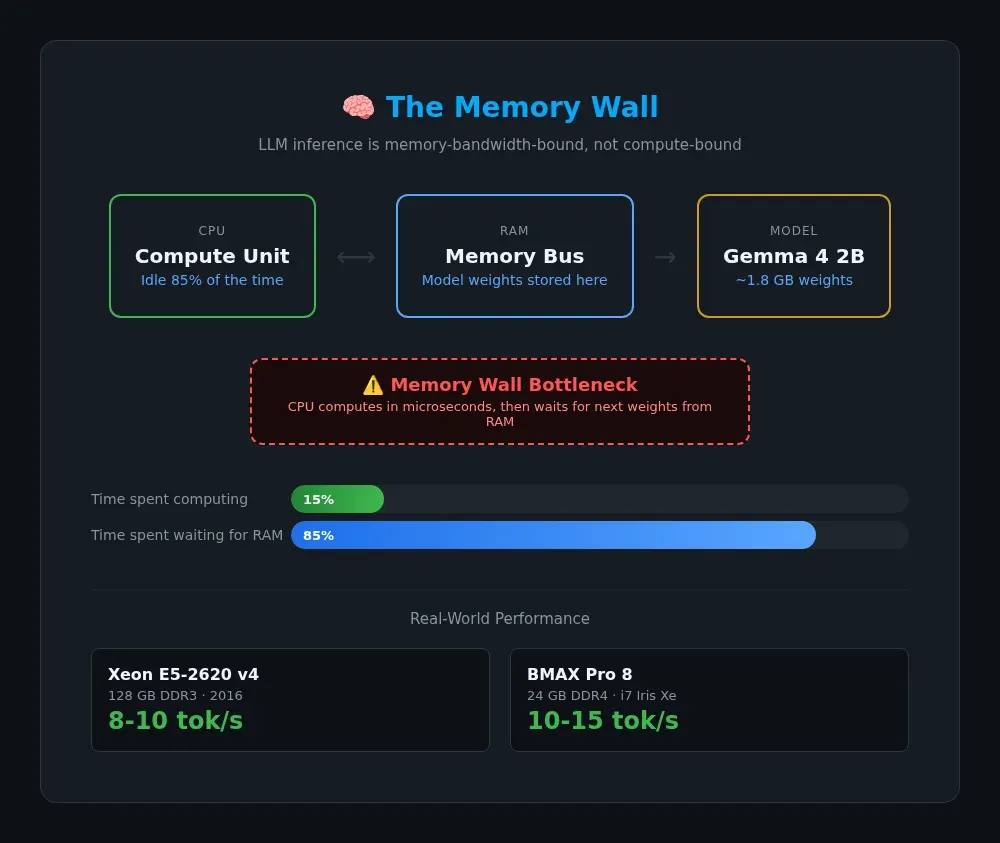
Before I show you what runs where, you need to understand one thing about LLM inference: it's almost always memory-bound, not compute-bound.
When you send a message to ChatGPT and watch the text stream back, here's what's happening under the hood:
- The model's weights (its learned knowledge) are stored in RAM
- To predict the next word, the CPU needs to read those weights from RAM into its compute units
- The CPU does the math in microseconds, then waits — idle — for the next chunk of weights to arrive
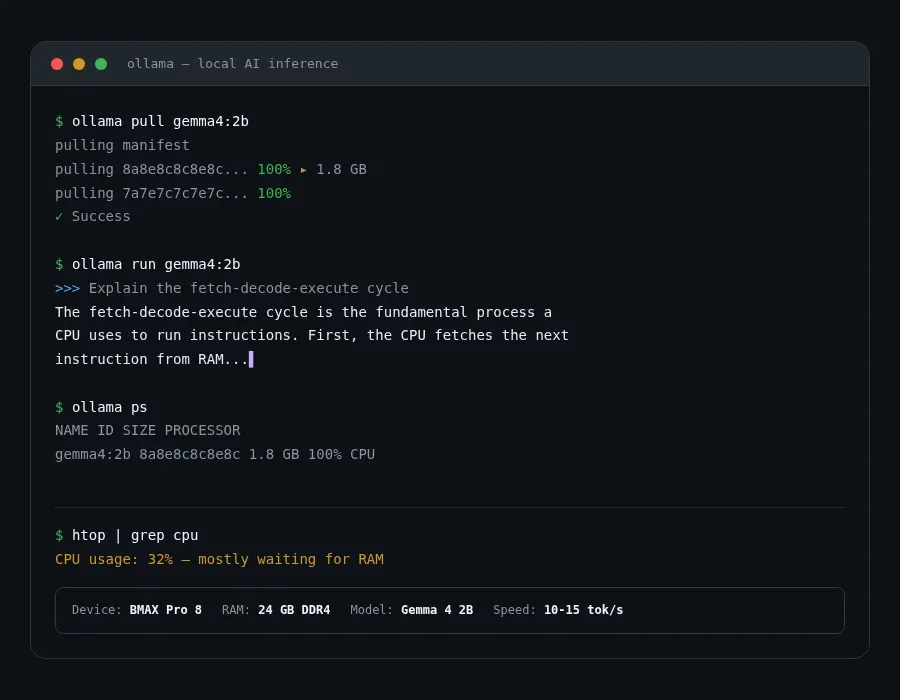
This is called the memory wall. A modern CPU can crunch numbers faster than the RAM bus can feed them. On my BMAX Pro 8 with 24 GB of DDR4, I ran a quick test with ollama run gemma4:2b and htop open. The CPU barely broke 30% utilization. It spent most of its time waiting for data.
The Xeon article confirmed this with real numbers: on an E5-2620 v4 with DDR3 RAM, the decoder pass is so memory-bound that speculative decoding (guessing multiple tokens at once) more than doubles throughput.
The practical takeaway: RAM speed and capacity matter more for LLM inference than CPU clock speed or cores. A 10-year-old server with lots of RAM can be more useful than expected for larger CPU-based models, especially when RAM capacity is the limiting factor.
The Contenders: What We're Working With
Here are three setups at very different price points. All of them can run modern LLMs.
| Setup | CPU | RAM | Approx Cost | Token Speed (3B model) |
|---|---|---|---|---|
| Recycled Xeon | Xeon E5-2620 v4 (2016) | 128 GB DDR3 | ~$200-300 (used) | ~8-10 tok/s |
| BMAX Pro 8 | Intel i7 Iris Xe | 24 GB DDR4 | ~$150 (used) | ~10-15 tok/s |
| Modern laptop | Any recent CPU | 16 GB DDR5 | ~$800+ | ~15-25 tok/s |
The Xeon has 128 GB RAM — enough for 26B-parameter models (like the Gemma 4 run in the article). The BMAX Pro 8 tops out at 24 GB, which means I'm limited to models around 7B parameters or smaller. But for most practical tasks — coding help, summarization, drafting emails — a 3B or 7B model is plenty.
What Models Actually Run on Old Hardware
I tested a few models on my BMAX Pro 8 using Ollama. Here's what I found:
Gemma 4 E2B (2.7B params, ~1.8 GB quantized)
This is Google's smallest Gemma 4 model. It runs great on any hardware with 8+ GB RAM. On my BMAX, I get smooth, responsive output — comparable to typing speed.
ollama pull gemma4:2b
ollama run gemma4:2b
Prompt: "Explain the fetch-decode-execute cycle in one paragraph."
Response: The fetch-decode-execute cycle is the fundamental process a CPU uses to run instructions. First, the CPU fetches the next instruction from RAM using the program counter as an address. Then the control unit decodes that instruction to figure out what operation it represents — whether it's a calculation, a data move, or a jump. Finally, the ALU executes the instruction. This cycle repeats billions of times per second, which is why clock speed matters.
Not bad at all for a model running on a $150 mini PC.
You can browse all available models on the Ollama library — most major models have community-maintained quantized versions ready to pull.
Llama 3.2 3B (3.2B params)
Meta's latest small model. It's noticeably smarter than Gemma 2B for coding tasks. Still runs comfortably within 24 GB RAM.
ollama pull llama3.2:3b
ollama run llama3.2:3b
Phi-4 (14B params)
Microsoft's Phi-4 is probably the best small model for coding right now. It's a bit heavier on RAM, but still runs on my BMAX setup. Response times are around 5-8 tokens per second — slower than the smaller models, but perfectly usable for generating code snippets or answering questions where you don't need real-time streaming.
What About the Big Models?
If you've got a Xeon with 128 GB RAM like the article's author, you can run models up to 26B parameters. That includes:
- Gemma 4 26B (with speculative decoding)
- Some 70B models may technically load with aggressive quantization on very high-RAM systems, but performance is likely to be slow enough that most users will prefer smaller models.
- Qwen 2.5 32B
- Mistral Large (24B)
# Even if you can't run them, you can check their sizes:
ollama pull qwen2.5:32b --dry-run
ollama pull gemma4:26b --dry-run
The big difference is speed. On DDR3 RAM, you're looking at 3-6 tokens per second for these larger models. That's slower than reading speed — think of it as an intern who types carefully. Still usable, especially for batch processing or overnight jobs.
On my BMAX Pro 8 with 24 GB, I'm capped at roughly 7B-parameter models. For everything I do (coding help, document drafting, question answering), that's enough.
Setting Up Ollama in 10 Minutes
If you've got any Linux machine with 8+ GB RAM, here's how to get started:
# Install Ollama
curl -fsSL https://ollama.com/install.sh | sh

# Start the service
sudo systemctl start ollama

# Pull a small model to test
ollama pull gemma4:2b

# Run it
ollama run gemma4:2b
That's it. You now have a local AI running on whatever hardware you own.
To see how much RAM a model uses while running:
ollama ps
This shows the model name, size, and how much VRAM (or RAM) it's consuming. If you're close to your system's memory limit, the model will slow down significantly — or crash.
For the Xeon-like setup from the article, the same commands work but with a lot more flags for optimization:
# On a Xeon with lots of RAM, use Ollama with modified flags
# Or skip Ollama and use ik_llama.cpp directly for full control
llama-cli --model gemma-4-26B-A4B-it-Q8_0.gguf \
  --cpu-moe --flash-attn on --mlock --no-kv-offload
Most people won't need this level of tuning. Ollama handles the defaults well. But if you're running models near your hardware's limit, knowing these flags exists is useful.
What's Usable vs What's Not
Here's my rough usability scale based on personal experience:
| Tokens/sec | Feel | Use Cases |
|---|---|---|
| 30+ | Instant | Chat, brainstorming, real-time coding |
| 15-30 | Fast | Coding help, summarization, drafting |
| 8-15 | Usable | Question answering, document review |
| 3-8 | Slow | Batch processing, overnight tasks |
| Under 3 | Painful | Only for overnight/background jobs |
On my BMAX Pro 8 with 24 GB RAM, small models (1B-3B) land in the "Fast" zone. Mid models (4B-7B) sit in "Usable." Large models won't fit at all. The Xeon with 128 GB can fit large models but sits in "Slow" territory for them — and "Fast" for small ones.
Cost Comparison: Old Hardware vs Cloud API
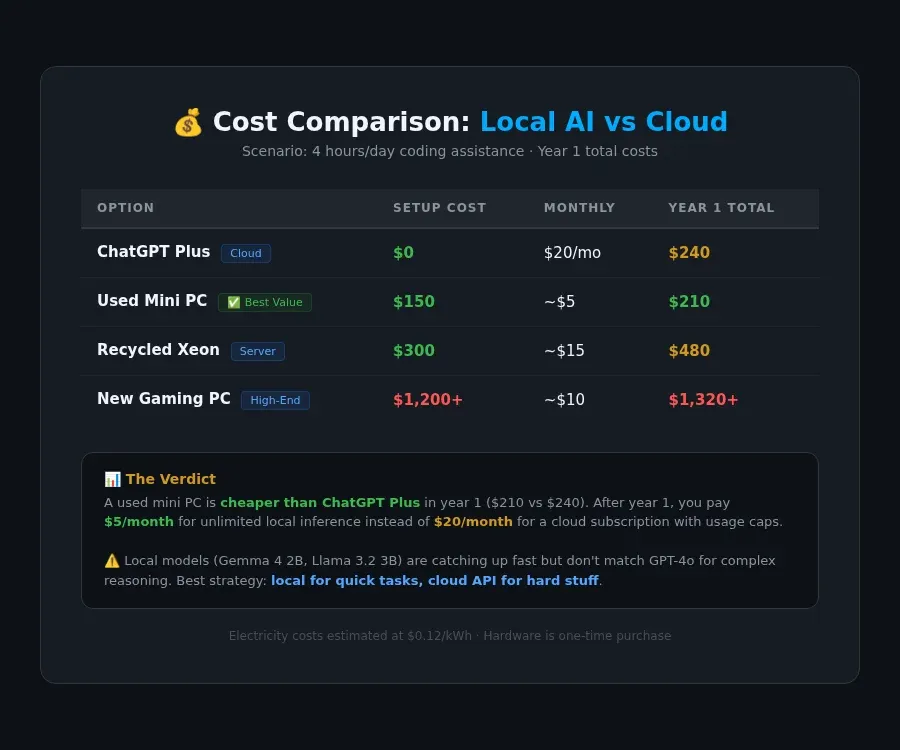
Here's where this gets interesting. I ran the numbers.
Scenario: You use ChatGPT for coding help 4 hours per day.
| Option | Setup Cost | Monthly Op Cost | Year 1 Total |
|---|---|---|---|
| ChatGPT Plus subscription | $0 | $20/mo | $240 |
| Used mini PC + local models | $150 | ~$5 (electricity) | $210 |
| Recycled Xeon server + local models | $300 | ~$15 (electricity) | $480 |
| New gaming PC + local models | $1,200+ | ~$10 (electricity) | $1,320+ |
For the first year, a mini PC is actually cheaper than ChatGPT Plus. And after year one, you're paying $5/month for unlimited local inference instead of $20/month for a cloud subscription with usage caps.
The Xeon server is more expensive up front, but you can run larger models. If you need 26B+ models regularly, it's still cheaper than cloud API pricing over 2+ years.
The catch: Cloud models (GPT-4o, Claude Sonnet, Gemini 2.5 Pro) are significantly smarter than any model you can run on a $150 mini PC. Local models are catching up fast — Gemma 4 2B and Llama 3.2 3B are surprisingly capable — but they're not competing with GPT-4o for complex reasoning tasks.
For my workflow, I use local models for quick coding help, drafts, and Q&A, then fall back to a cloud API for the hard stuff. Best of both worlds.
Why not just use the cloud? Privacy. When you run models locally, nothing leaves your machine. No API logs, no prompt storage on someone else's servers, no subscription dependency. Your AI keeps working during an internet outage. For sensitive work — writing about unreleased products, reviewing internal code, or just not wanting your conversations fed into someone else's training data — local models are the only way to be sure.
Tips for Building Your Own Old-Hardware AI Rig
If you want to set up your own local AI on budget hardware, here's what I've learned:
- Prioritize RAM capacity over speed. 32 GB is the sweet spot for 7B models. 128 GB unlocks 26B+ models. DDR3 is fine — it's the capacity that matters.
- Look for used enterprise workstations. A Dell Precision Tower or HP Z-series with a Xeon and lots of RAM can often be found for $200-400 on eBay. These are better for AI than a consumer desktop because they support more RAM and have better cooling.
- Mini PCs work for small models. My BMAX Pro 8 is silent, tiny, and draws 25W. Perfect for running Gemma 4 2B or Llama 3.2 3B 24/7. Just keep model sizes under 7B.
- Don't bother with AVX-512. The Xeon article confirmed that AVX-512 support isn't necessary — modern quantized models work fine with AVX2, which nearly every CPU from 2014 onward supports.
- Install Ollama first, worry about optimization later. The default settings work surprisingly well. Get a model running, then tinker with flags if you need more speed.
If you already have an old laptop you're not using, try installing Ubuntu and setting up Ollama. Most laptops from 2016 onward with 16 GB RAM can run small models at usable speeds.
You Don't Need an RTX 4090 to Experiment With AI
The "A 10 year old Xeon is all you need" post proved something important: the barrier to entry for local AI is lower than most people think. You don't need a $10K GPU or a gaming PC with 128 GB of VRAM. You need something with decent RAM and a willingness to tinker.
Whether it's a recycled server, a used mini PC, or an old laptop running Linux, you can start experimenting with local LLMs today. The models get better every month. The hardware requirements keep dropping. And the privacy benefits of running everything locally? That's the real win.
If you want to go deeper, check out my guide to setting up Hermes Agent on a mini PC home server — it covers how I turned my BMAX Pro 8 into an always-on AI assistant. For a broader look at self-hosting on mini PC hardware, my Proxmox homelab setup guide covers turning a small machine into a full VM host — a natural next step after getting Ollama running.
Got an old PC lying around? Try installing Ollama and let me know what model runs best on your setup. I'm always curious to hear what works.
