


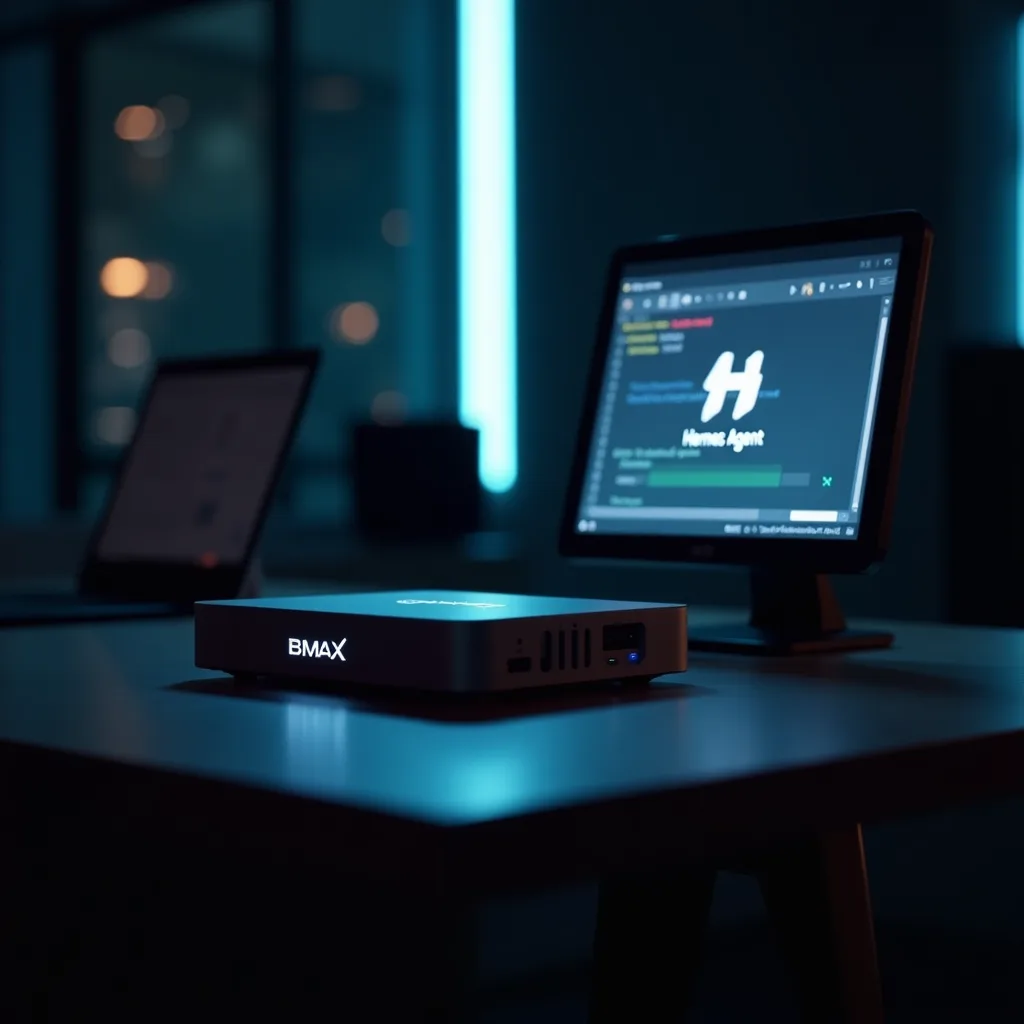
I've been running Hermes Agent on a BMAX Pro 8 mini PC in my home lab for a few months now. Instead of relying on ChatGPT's web interface or paying for a cloud agent service, I have my own autonomous AI running 24/7 on a box smaller than a paperback — and the whole thing cost less than a mid-range smartphone.
Here's what this guide covers:
- What Hermes Agent is and why run it on a home server - The hardware you need (verified: BMAX Pro 8) - Step-by-step installation from scratch - Configuring AI providers — local or cloud - Running your agent 24/7 with Discord gateway access - Common pitfalls and fixes
What Is Hermes Agent?
Hermes Agent is an open-source AI assistant built by Nous Research. It's MIT-licensed, CLI-first, and designed to be self-hosted. Here's what sets it apart:
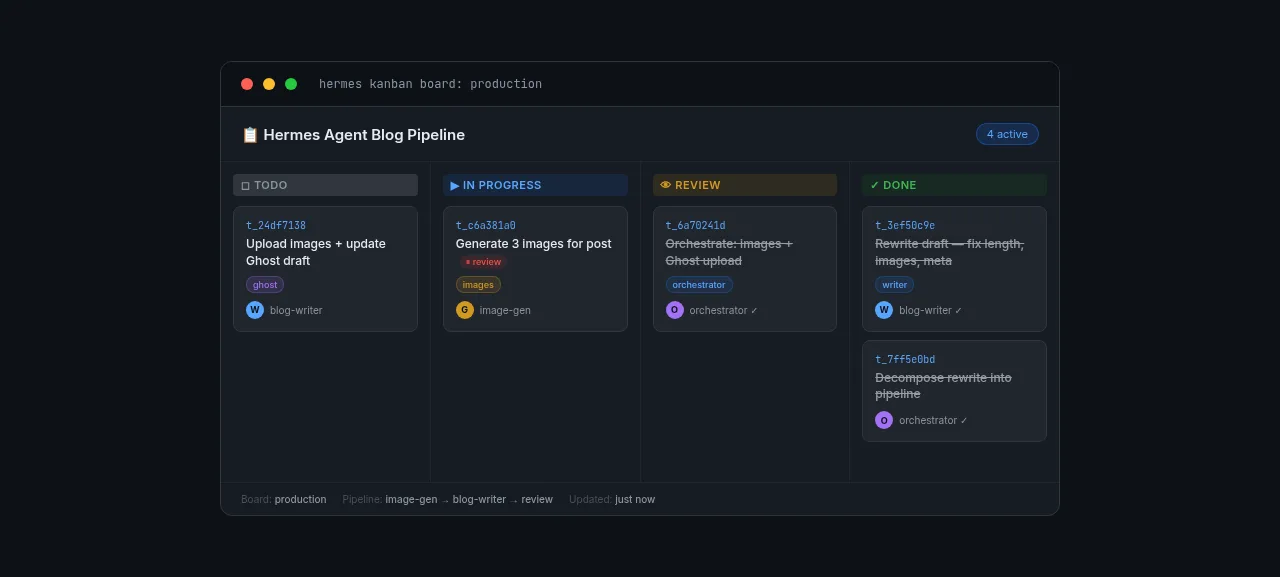
Tool use built in. Hermes can run bash commands, read and write files, search the web, and manage a Kanban board. It's not just a chatbot — it actually does things on your server.
Multi-provider support. Use OpenAI, Anthropic, DeepSeek, Ollama, or any OpenAI-compatible provider. You're not locked into one model. I keep Ollama for quick local tasks and Claude for complex reasoning.
Skill system. Skills are markdown files that teach your agent new abilities — YouTube summaries, GitHub PR reviews, PDF extraction. You can write your own.
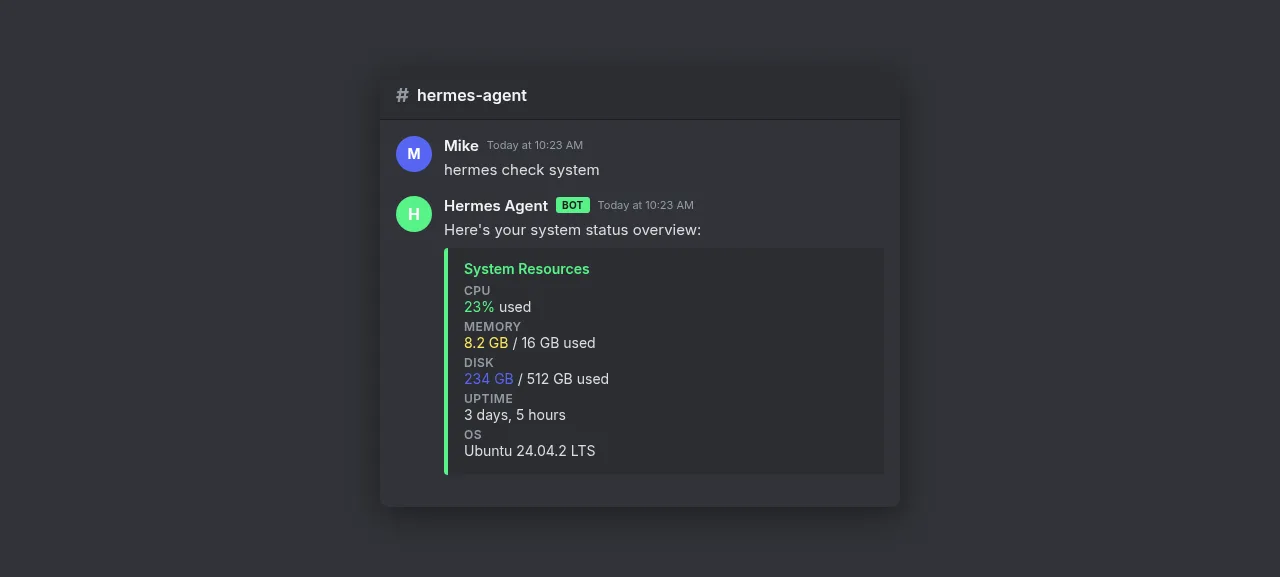
Gateway system. Your agent connects to Discord or Telegram so you can message it from your phone. It responds wherever you are.
If you're comparing AI coding tools, I wrote about my experience with Replit Agent — but for persistent autonomous operation on your own hardware, Hermes is in a different league.
What You'll Need: BMAX Pro 8
The good news: Hermes Agent itself uses about 200 MB of RAM. You don't need a GPU unless you want local LLM inference.
\n\n| Component | Spec |
| Mini PC | BMAX Pro 8 |
| CPU | Intel i7 with Iris Xe graphics |
| RAM | 24 GB |
| Storage | 1 TB NVMe SSD |
| Network | Gigabit Ethernet (use wired, not WiFi) |
| OS | Ubuntu Server 24.04 LTS |
RAM is what matters most. For cloud API usage, 24 GB is plenty. If you want to run a local LLM via Ollama, 24 GB with the i7 Iris Xe can handle a quantized 7B model at usable speeds.
Don't use a Raspberry Pi for this. A Pi can technically run the agent, but the CPU and RAM become bottlenecks fast. The BMAX Pro 8 is under $300 used and runs circles around any single-board computer.
If you're new to mini PC servers, my Proxmox Homelab Guide covers hardware selection and Linux basics that pair well with this setup.
Step 1 — Install Ubuntu Server 24.04
Download Ubuntu Server 24.04 LTS and create a bootable USB:
# On Linux\nsudo dd if=ubuntu-24.04-live-server-amd64.iso of=/dev/sdX bs=4M status=progress\nOn Windows use Rufus or Balena Etcher. Boot from the USB (mash F2/F7/F10/Del during startup — it varies by manufacturer). A few things to check:
- Filesystem: ext4 is fine. ZFS is overkill. - SSH server: check the box to install OpenSSH during setup. - Username: I use hermes as mine.
The install takes about 10 minutes. When it's done, SSH in from another machine:
ssh hermes@192.168.1.x\nsudo apt update && sudo apt upgrade -y\nsudo ufw allow OpenSSH\nsudo ufw enable\nsudo apt install -y git curl wget htop\nYour mini PC is ready.
Step 2 — Install Hermes Agent
Ubuntu 24.04 ships with Python 3.12, which works perfectly with Hermes.
python3 -m venv ~/hermes-env\nsource ~/hermes-env/bin/activate\necho 'source ~/hermes-env/bin/activate' >> ~/.bashrc\npip install hermes-agent\nhermes --version\nThen initialize:
hermes init\nThis creates ~/.hermes/ with config files, profiles, and the skill directory.
Step 3 — Configure Your AI Provider
You have two paths.
Option A: Local LLM with Ollama
Everything runs on your BMAX Pro 8 with no external API calls.
curl -fsSL https://ollama.ai/install.sh | sh\nollama pull llama3.1:8b\nConfigure ~/.hermes/config.yaml:
default_provider: ollama\nproviders:\n ollama:\n type: openai-compatible\n base_url: http://localhost:11434/v1\n api_key: ollama\n model: llama3.1:8b\nThe Iris Xe iGPU handles a quantized 7B model at about 10–15 tokens per second. Fast enough for automation tasks.
Option B: Cloud API
For the best models (Claude, GPT-4o, DeepSeek):
default_provider: openai\nproviders:\n openai:\n api_key: ***\n model: gpt-4o\n anthropic:\n api_key: sk-ant...\n model: claude-sonnet-4-20250514\nCost note: Cloud API costs add up — I spend about $20–30/month for a moderately active agent.
Step 4 — Run 24/7 with systemd and Gateway
Create a systemd service so your agent runs in the background and restarts on failure:
sudo nano /etc/systemd/system/hermes.service\n[Unit]\nDescription=Hermes Agent\nAfter=network.target\n\n[Service]\nType=simple\nUser=hermes\nExecStart=/home/hermes/hermes-env/bin/hermes daemon\nWorkingDirectory=/home/hermes\nRestart=on-failure\nRestartSec=5\n\n[Install]\nWantedBy=multi-user.target\nThen enable it:
sudo systemctl enable hermes\nsudo systemctl start hermes\nsudo systemctl status hermes\nDiscord Gateway
This is my favorite feature — I message my agent from my phone and it responds in real-time.
1. Go to the Discord Developer Portal, create an application, get a bot token. 2. Invite the bot to your server. 3. Add to ~/.hermes/config.yaml:
gateway:\n enabled: true\n platform: discord\n token: your-bot-token-here\n channel_id: your-channel-id\n4. Restart: sudo systemctl restart hermes
Now message your agent from your phone. Ask it to check disk space, summarize a website, or run a script.
Cron Jobs
Hermes has a built-in cron scheduler:
cron:\n - name: "daily-summary"\n schedule: "0 8 * * *"\n prompt: "Check system resources and summarize any issues."\n deliver_to: discord\nI use this for daily health checks, weekly backup reports, and service monitoring.
Common Pitfalls
YAML indentation. config.yaml uses spaces, not tabs. One wrong space and Hermes silently falls back to defaults. Run hermes config validate to check.
Missing dependencies. Skills sometimes need system packages:
sudo apt install -y ffmpeg pandoc poppler-utils\nOOM with local models. If Ollama crashes, the model is too big for your RAM. Drop to a smaller quantized version: ollama pull llama3.1:8b-q4_K_M uses about 5 GB instead of 8 GB.
Wrap-up
Setting up Hermes Agent on a BMAX Pro 8 is straightforward. You're not installing a static web app — you're installing an AI that can act on your behalf.
\n\n| Step | What you get |
| Ubuntu Server 24.04 | Stable Linux foundation |
| Hermes Agent install | Your AI ready to go |
| Provider config | Local or cloud AI brains |
| systemd + gateway | 24/7 access from anywhere |
| Cron jobs | Automated tasks on schedule |
The first time your agent sends you a Discord message with a system health report it generated on its own, you'll realize how different this is from talking to a chatbot. It's not just answering questions — it's doing work.
Give it a try, and let me know how it goes.
