


PowerShell is hands-down one of the most useful tools Microsoft has ever built for Windows. It's not just a replacement for the old DOS command prompt — it's a full task automation and configuration management framework built on .NET. If you're still typing ping and ipconfig in cmd.exe, you're missing out on a world of automation. For more details, check out Building a Real-Time Chat App with Laravel Livewire and Push. For more details, check out Unlocking Your Internal Drives After Windows 11 Installation. For more details, check out A Step-by-Step Guide to Setting Up Whonix for Enhanced Inter.
In this guide, I'll cover the PowerShell commands I use daily, plus one of the most practical things you can do with PowerShell: removing all that pre-installed bloatware from Windows 10.
Before You Start: Run PowerShell as Administrator<

/h2>
Most of what we're going to do requires admin rights. Always right-click the PowerShell icon and select Run as administrator. If you're on a 64-bit system, make sure you're using the 64-bit version of PowerShell.
Essential PowerShell Commands
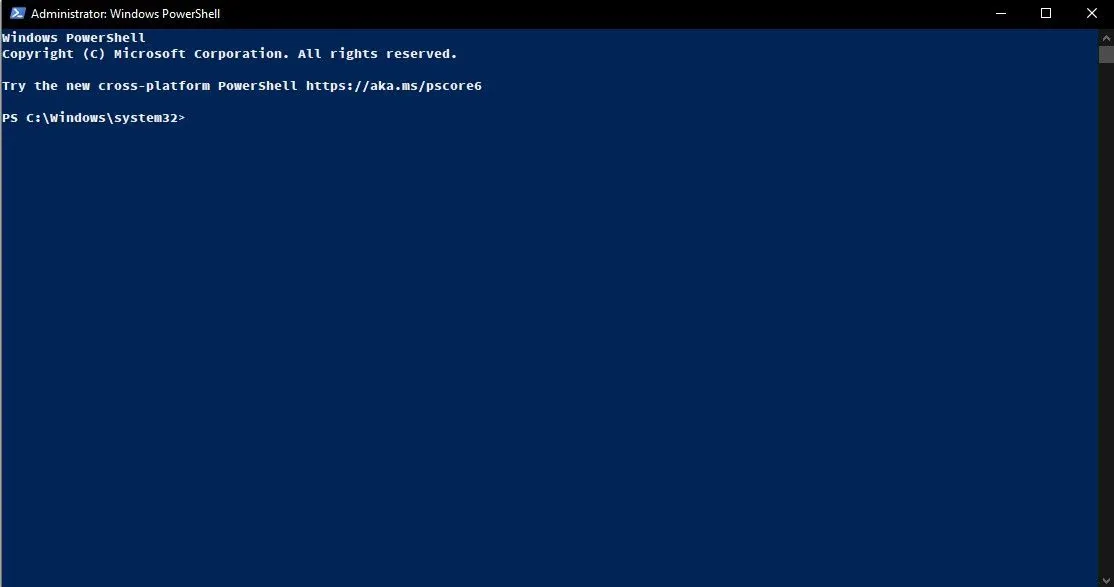
Let's start with the commands every Windows admin — or power user — should know.
1. Get-Help — Your Lifeline
This is the first cmdlet you should learn. Get-Help shows you documentation for any other PowerShell command. If you ever forget how a command works, this is your answer:
Get-Help -Name Get-Process\nYou can also use Get-Command to find commands by keyword:
Get-Command *service*\n2. Working with the Execution Policy
PowerShell has an execution policy that controls what scripts can run on your system. This is a safety feature, but it can also be a headache when you're first starting out.
Here are the common policies:
# Restricted — no scripts can run (default on most systems)\nSet-ExecutionPolicy Restricted -Scope LocalMachine -Force\n\n# AllSigned — only scripts signed by a trusted publisher\nSet-ExecutionPolicy AllSigned -Scope LocalMachine -Force\n\n# RemoteSigned — local scripts run, remote ones must be signed\nSet-ExecutionPolicy RemoteSigned -Scope LocalMachine -Force\n\n# Unrestricted — all scripts can run (not recommended for production)\nSet-ExecutionPolicy Unrestricted -Scope LocalMachine -Force\nI usually set mine to RemoteSigned — it's a good balance between security and convenience.
3. Get-ExecutionPolicy — Check Before You Run
If you're working on an unfamiliar machine, always check what execution policy is active before trying to run a script:
Get-ExecutionPolicy\n4. Get-Service — Manage Windows Services
Need to see what services are running on your machine? Get-Service lists all of them. You can filter by name with wildcards:
# List all services\nGet-Service\n\n# Find a specific service\nGet-Service -Name *spooler*\n\n# Check the status\nGet-Service -Name Spooler | Select-Object Name, Status, StartType\nYou can then pipe those results into Start-Service, Stop-Service, or Set-Service to manage them.
5. Get-Process — See What's Running
Just like Get-Service but for running processes:
# Show all running processes\nGet-Process\n\n# Find a specific process\nGet-Process -Name chrome\n6. Stop-Process — Kill Stuck Processes
When an application freezes (and we all know that happens), you can kill it with PowerShell instead of opening Task Manager:
# Kill by process name\nStop-Process -Name notepad\n\n# Kill by process ID\nStop-Process -ID 2668\nRemoving Windows 10 Pre-Installed Apps with PowerShell
Now let's get to the practical stuff. Windows 10 ships with a ton of apps you probably don't want — Candy Crush, Xbox-related apps, Twitter, and more. Here's how to nuke them with PowerShell.
Method 1: Remove Apps from the Installation Image
This method removes apps before you even install Windows. It's useful if you're building a custom install USB.
You'll need a PowerShell script originally created by Andre Picker on TechNet. Download the script, extract it to the root of your drive (I use D:\\), then:
# First, allow script execution\nSet-ExecutionPolicy Unrestricted -Scope LocalMachine -Force\n\n# Run the remove apps script\nD:\\.\\removeapps.ps1 -pathtowim C:\\full\\path\\to\\your\\install.wim -selectapps $true\nYou'll be prompted with each app — enter Y for the ones you want to remove. After it finishes, copy the modified install.wim to the sources folder on your USB stick. Boot from that USB and you'll get a clean Windows install with all that bloatware gone.
Method 2: Remove Apps from an Existing Windows Installation
Already installed Windows 10 and want to clean it up? Use these commands directly in PowerShell (run as administrator).
First, set the execution policy:
Set-ExecutionPolicy Unrestricted -Scope LocalMachine -Force\nThen remove the apps one by one. Here's the full list of commands I use:
Get-AppxPackage -AllUsers *3dbuilder* | Remove-AppxPackage\nGet-AppxPackage -AllUsers *windowsalarms* | Remove-AppxPackage\nGet-AppxPackage -AllUsers *Appconnector* | Remove-AppxPackage\nGet-AppxPackage -AllUsers *Asphalt8Airborne* | Remove-AppxPackage\nGet-AppxPackage -AllUsers *windowscamera* | Remove-AppxPackage\nGet-AppxPackage -AllUsers *CandyCrushSodaSaga* | Remove-AppxPackage\nGet-AppxPackage -AllUsers *DrawboardPDF* | Remove-AppxPackage\nGet-AppxPackage -AllUsers *Facebook* | Remove-AppxPackage\nGet-AppxPackage -AllUsers *WindowsFeedbackHub* | Remove-AppxPackage\nGet-AppxPackage -AllUsers *officehub* | Remove-AppxPackage\nGet-AppxPackage -AllUsers *skypeapp* | Remove-AppxPackage\nGet-AppxPackage -AllUsers *getstarted* | Remove-AppxPackage\nGet-AppxPackage -AllUsers *zunemusic* | Remove-AppxPackage\nGet-AppxPackage -AllUsers *windowsmaps* | Remove-AppxPackage\nGet-AppxPackage -AllUsers *Messaging* | Remove-AppxPackage\nGet-AppxPackage -AllUsers *solitairecollection* | Remove-AppxPackage\nGet-AppxPackage -AllUsers *ConnectivityStore* | Remove-AppxPackage\nGet-AppxPackage -AllUsers *zunevideo* | Remove-AppxPackage\nGet-AppxPackage -AllUsers *OneConnect* | Remove-AppxPackage\nGet-AppxPackage -AllUsers *Office.Sway* | Remove-AppxPackage\nGet-AppxPackage -AllUsers *Twitter* | Remove-AppxPackage\nGet-AppxPackage -AllUsers *xboxapp* | Remove-AppxPackage\nGet-AppxPackage -AllUsers *XboxOneSmartGlass* | Remove-AppxPackage\nNote: The *ContactSupport* app can't be removed in newer versions of Windows 10, so I've left that one out.
To remove apps for the current user only (without the -AllUsers flag):
Get-AppxPackage *CandyCrushSodaSaga* | Remove-AppxPackage\nCreating a Removal Script
If you do this regularly (I do), save all your removal commands into a .ps1 file:
# remove-bloatware.ps1\nWrite-Host "Removing Windows 10 bloatware..." -ForegroundColor Green\n\n$apps = @(\n "*3dbuilder*",\n "*CandyCrushSodaSaga*",\n "*Facebook*",\n "*skypeapp*",\n "*xboxapp*",\n "*Twitter*",\n "*windowsalarms*",\n "*zunemusic*",\n "*windowsmaps*"\n)\n\nforeach ($app in $apps) {\n Get-AppxPackage -AllUsers $app | Remove-AppxPackage\n Write-Host "Removed: $app" -ForegroundColor Yellow\n}\n\nWrite-Host "Done! You may want to restart." -ForegroundColor Green\nJust run .\\\\remove-bloatware.ps1 as administrator and watch the apps disappear.
Putting It All Together
Here's a quick PowerShell workflow I use when setting up a new Windows machine:
- Check execution policy:
Get-ExecutionPolicy - Set it to RemoteSigned:
Set-ExecutionPolicy RemoteSigned -Scope LocalMachine -Force - Remove bloatware: Run the commands above
- Check running services:
Get-Serviceto see what's running and disable what I don't need - Verify everything:
Get-Processto make sure nothing unexpected is running
What's Next?
PowerShell can do so much more — managing Active Directory, automating backups, configuring network settings, and even working with cloud services like Azure. The cmdlets I've covered here are the foundation. Start with these, get comfortable with the pipeline (the | operator that passes output from one command to the next), and you'll find yourself using PowerShell for more and more tasks.
Check out my free software page for other useful tools and apps that pair well with a clean Windows setup.
