


If you care about online privacy, you've probably used Tor Browser. It routes your browser traffic through the Tor network, hiding your IP address from the sites you visit. But Tor Browser has a weakness — it only protects what happens inside the browser. DNS leaks, other applications, and system-level fingerprinting can still give you away. For more details, check out A Step-by-Step Guide to Setting Up Whonix for Enhanced Inter. For more details, check out Setting Up a Python Development Environment on VirtualBox wi. For more details, check out Mail Merge in Microsoft Word: A Step-by-Step Guide for Print.
Whonix fixes this. It's an entire operating system designed to route every single connection through Tor. Not just web traffic — everything. DNS, time sync, package updates, all of it. If it leaves your computer, it goes through Tor.
In this guide, I'll walk you through setting up Whonix on VirtualBox from scratch, including a troubleshooting section for the most common issues.
How Whonix Works<
/h2>
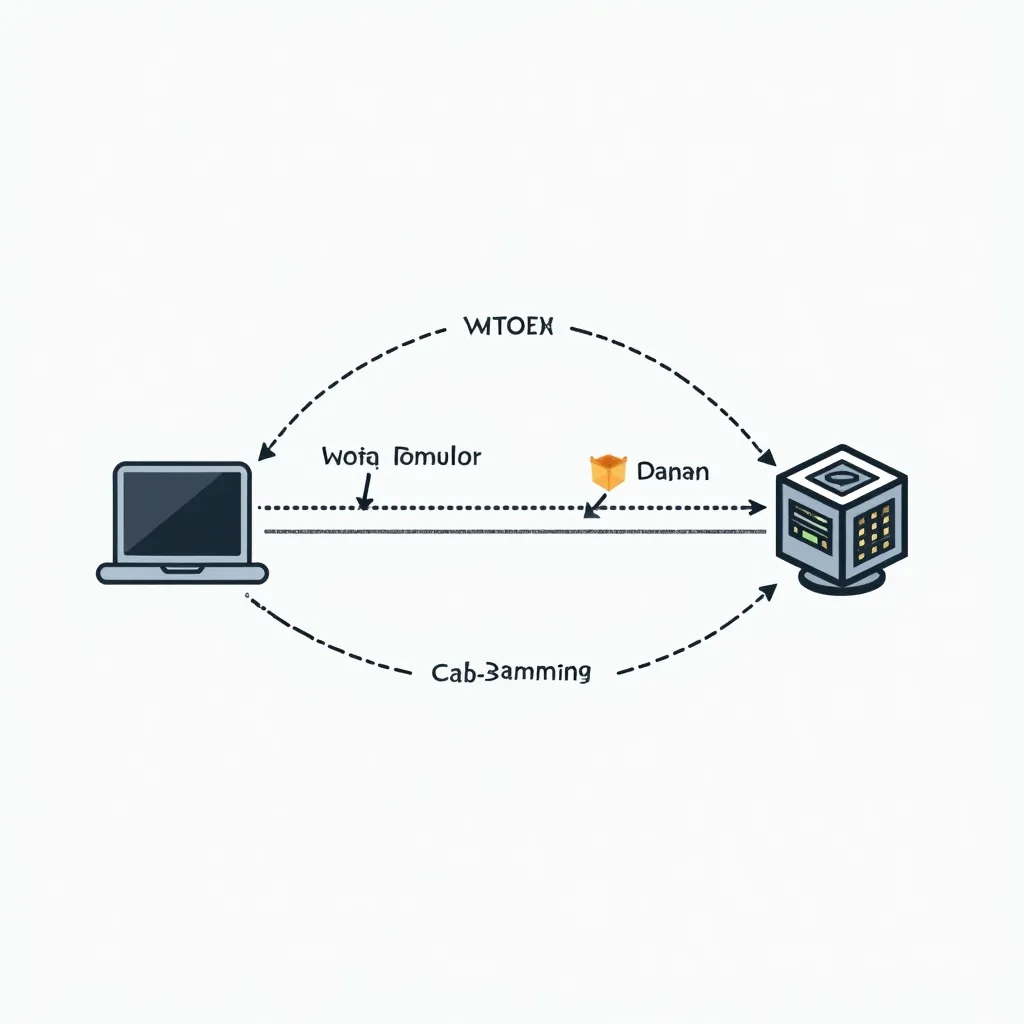
Whonix uses a two-VM architecture that's clever but simple:
- Whonix Gateway — a minimal Debian system that runs Tor and acts as the network router. All traffic flows through this VM.
- Whonix Workstation — the desktop environment where you actually work. It's locked down so it can ONLY communicate through the Gateway.
Even if an attacker compromises the Workstation (say, through a browser exploit), they can't get your real IP address because the Workstation has no knowledge of it. The Gateway handles all the networking and never runs user software.
This "split architecture" is what makes Whonix stronger than just running Tor Browser alone.
Prerequisites
Before you start, make sure you have:
- VirtualBox installed (6.1 or newer recommended)
- At least 4GB of RAM (8GB is better — you're running two VMs)
- 30GB of free disk space (15GB per VM)
- VT-x/AMD-V enabled in BIOS
- A stable internet connection for downloads
Step 1: Download Whonix
Go to whonix.org/download and download the Whonix OVA files. You need both:
Whonix-Gateway-Xfce.ovaWhonix-Workstation-Xfce.ova
The Xfce versions are lighter than KDE and run better on modest hardware. Total download is about 3GB — start it and grab a coffee.
The OVA files include the VM configuration pre-baked, so you don't need to configure the two-VM network setup manually. That used to be the hard part, and Whonix eliminated it years ago.
Verify the Download
Before importing, verify the download integrity:
sha256sum Whonix-Gateway-*.ova\nCompare the hash against the one listed on the Whonix download page. If it matches, you're good.
Step 2: Import Both VMs into VirtualBox
Open VirtualBox and go to File → Import Appliance. Select the Gateway OVA first.
Import settings to check: - RAM: Increase from the default 512MB to 1024MB for the Gateway - CPU: 2 cores for both VMs - Enable "Import hard drives as VDI" if you want the default format (optional)
After the Gateway imports, repeat the process for the Workstation OVA.
You should now see two VMs in VirtualBox Manager: Whonix-Gateway-Xfce and Whonix-Workstation-Xfce.
Step 3: Adjust Network Settings (Important)
The OVA files pre-configure the network adapters, but you should verify them.
Whonix Gateway
Select the Gateway VM and go to Settings → Network:
- Adapter 1: Attached to NAT — this gives the Gateway internet access through your host
- Adapter 2: Attached to Internal Network — name is
Whonix— this is the private link to the Workstation
Both should be set correctly already from the OVA import. Just verify.
Whonix Workstation
Select the Workstation and go to Settings → Network:
- Adapter 1: Attached to Internal Network — name must be exactly
Whonix(same as the Gateway's internal network)
That's the only adapter. The Workstation has no direct internet access — it can only talk to the Gateway through the internal network.
Step 4: Boot the VMs
Always start the Gateway FIRST. The Workstation has nothing to route through if the Gateway isn't running.
- Select
Whonix-Gateway-Xfceand click Start - Wait for it to boot completely (you should see monitoring screens showing Tor connections)
- Once the Gateway is up, select
Whonix-Workstation-Xfceand click Start
The Workstation will boot to a desktop environment. You'll see a Tor Connection window — let it connect, and you're online through Tor.
Default login: Both VMs use user as the username and changeme as the password. Change these immediately after setup.
Step 5: Test Your Anonymity
Open the Tor Browser on the Workstation and visit:
- check.torproject.org — Tor Project's test page
- whatsmyip.org — should show a Tor exit node IP, not yours
Check.torproject.org will confirm you're using Tor. If it says "Sorry, you are not using Tor," something in your network config is wrong.
Step 6: Update Everything
Keep Whonix updated. Open a terminal in the Workstation:
sudo apt update\nsudo apt full-upgrade -y\nThen do the same in the Gateway (start a terminal on the Gateway VM):
sudo apt update\nsudo apt full-upgrade -y\nReboot both VMs after updating. You should do this weekly — Tor and Whonix get regular security updates.
Common Issues and Troubleshooting
Workstation can't reach the Gateway
This is the most common issue. The internal network names must match exactly.
Fix: Shut down both VMs. Go into each VM's network settings and verify the Internal Network name. Both must be set to Whonix (case-sensitive). Restart the Gateway first, then the Workstation.
Gateway starts but Tor won't connect
Check your host machine's internet connection first. If that's fine, the issue might be:
- A firewall on your host blocking Tor connections (corporate networks often block Tor)
- A DNS leak at the host level
Fix: Try bridging the Gateway's Adapter 1 to a different network interface. In severe cases, use a bridge (Tor bridges), configured in /etc/tor/torrc on the Gateway.
"Time seems off" warnings
Tor is sensitive to clock drift. If your system clock is wrong by more than a few minutes, Tor won't connect.
Fix: Make sure your host's clock is set correctly with NTP sync.
Slow performance
Both VMs running simultaneously is demanding. Try:
- Close unnecessary host applications (especially Chrome)
- Reduce Workstation memory to 2048MB
- Use the Gateway with 768MB instead of 1024MB
- Make sure you're running from an SSD
USB devices not passing through
Whonix doesn't support USB passthrough well. If you need to transfer files, use VirtualBox shared folders or an encrypted USB drive mounted to the host then shared to the Workstation.
Can I install additional software?
Yes. The Workstation is a Debian system. You can apt install most software, but everything will route through Tor. This means:
- Downloads will be slower
- Some repositories may not work well over Tor
- Never install a VPN inside Whonix — it bypasses the Tor routing
Advanced Configuration
Set Up an Onion Service
Want to host a hidden service from your Whonix Workstation? Edit the Gateway's Tor config:
# On the Gateway terminal\nsudo nano /etc/tor/torrc\nAdd your hidden service configuration, then restart Tor:
sudo systemctl restart tor\nStream Isolation
By default, Whonix isolates different applications onto different Tor circuits. Each application gets its own circuit, so your email session and your web browsing are on separate paths. This is automatic — just don't disable it.
Using a Bridge
If Tor is blocked in your country, configure bridges in the Gateway:
sudo nano /etc/tor/torrc\nUncomment or add the UseBridges 1 and Bridge lines with bridge information from bridges.torproject.org.
Is Whonix Right for You?
Whonix is powerful, but it's not for everyone.
Use Whonix if: - You need guaranteed anonymity for specific activities - You're a journalist, activist, or security researcher - You want to learn about Tor and network security - You're willing to accept slower speeds for privacy
Don't use Whonix if: - You just want to browse privately without ads tracking you — use Firefox with Privacy Badger - You need fast downloads or streaming — Tor capacity is limited - You're not comfortable with the performance overhead of running two VMs
For most people, Tor Browser or a VPN is enough. For those who need serious anonymity guarantees, Whonix is the gold standard.
Quick Reference
\n\n| Item | \nGateway | \nWorkstation | \n
|---|---|---|
| Purpose | \nRoutes traffic through Tor | \nDesktop environment | \n
| Adapter 1 | \nNAT (internet access) | \nInternal Network | \n
| Adapter 2 | \nInternal Network (Whonix) | \nN/A | \n
| RAM (recommended) | \n1024MB | \n2048-4096MB | \n
| Login | \nuser / changeme | \nuser / changeme | \n
| Network isolation | \nDirect internet | \nGateway only | \n
Whonix takes a few more minutes to set up than a typical VM, but the anonymity guarantee is worth it. Once both VMs are running and you confirm Tor is working, you have one of the strongest privacy setups available without specialized hardware.
Stay safe out there.
