

VirtualBox is one of those tools that I keep coming back to year after year. Whether I'm testing a new OS, setting up a vulnerable machine for security research, or just wanting to try something out without risking my main system — VirtualBox just works. It's free, open source, and runs on Windows, macOS, and Linux. For more details, check out Unlocking Your Internal Drives After Windows 11 Installation. For more details, check out How to Install macOS in VirtualBox on Windows (2026 Guide). For more details, check out Setting Up a Python Development Environment on VirtualBox wi.
In this guide, I'll walk you through installing two very different versions of Windows on VirtualBox: Windows 10 and Windows XP. They serve completely different purposes, and I use both regularly. Let me show you why and how.
What is VirtualBox?<
/h2>
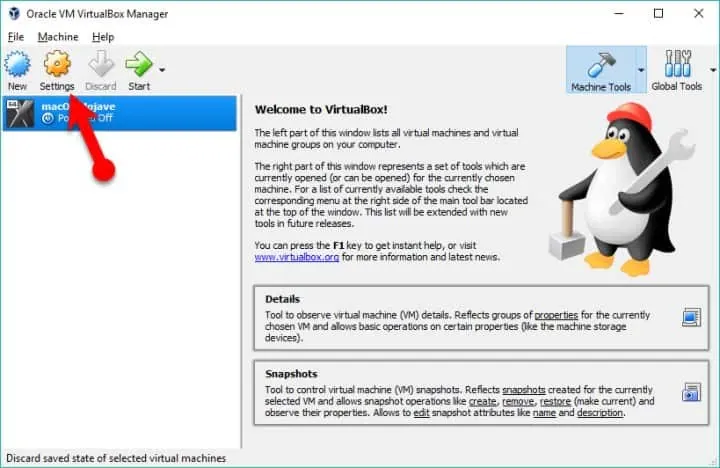
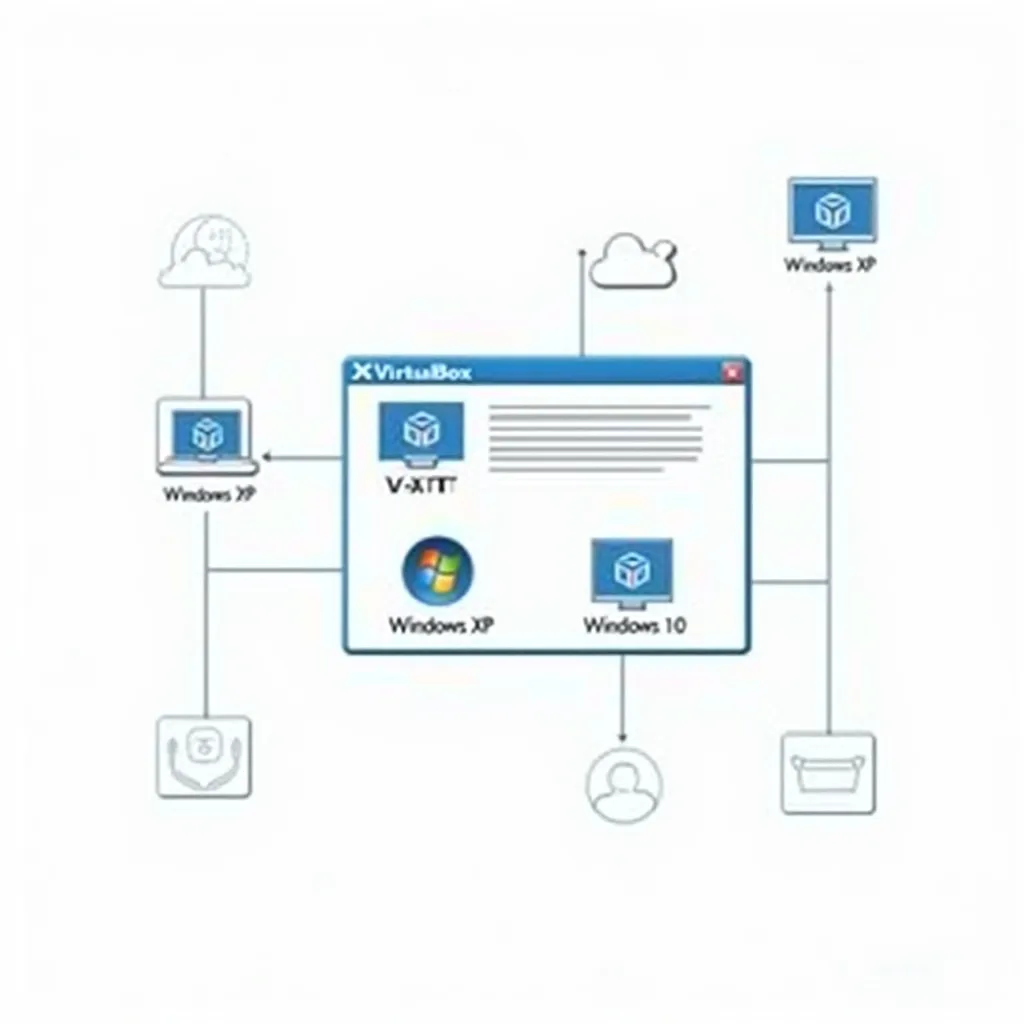
VirtualBox is a free, open-source virtualization application from Oracle that lets you run multiple operating systems on a single physical machine. Think of it as a computer within a computer — you allocate some of your real hardware resources (CPU cores, RAM, storage) to a virtual machine (VM), and that VM behaves like a standalone PC.
It's a fantastic way to experiment with operating systems without dual-booting or needing a second machine. Once you've set up a VM, you can clone it, snapshot it, and if something goes wrong — just delete it and start fresh.
Understanding the Limitations
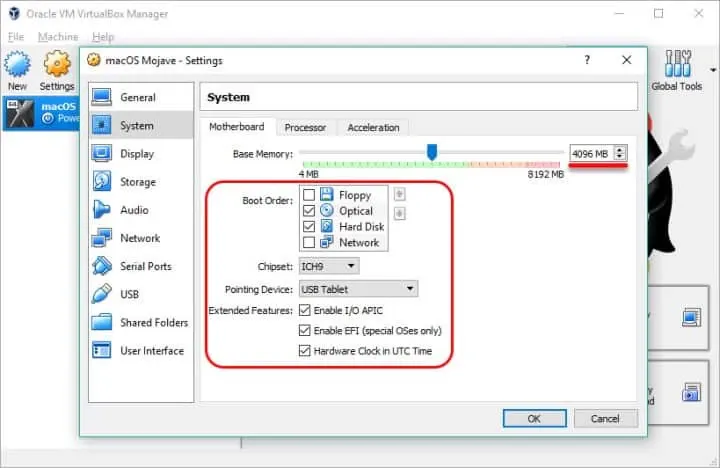
Before we jump in, let's be realistic about what VirtualBox can handle. You're limited by your physical hardware. Here's a rough guide:
- On a machine with an i7 and 16 GB of RAM, you could comfortably run about 4 VMs at once, each using 1 CPU core and 2 GB of memory.
- Running a single VM at a time? You can allocate more resources for better performance.
- The more RAM and CPU cores you give your VM, the snappier it'll feel — but remember, those are resources your host OS can't use while the VM is running.
Getting Started: Download VirtualBox
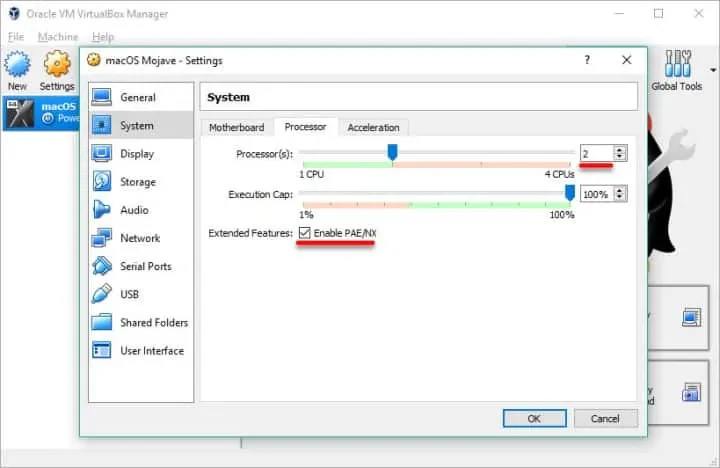
First things first — head to the VirtualBox downloads page and grab the version for your host OS. I also recommend downloading the VirtualBox Extension Pack from the same page — it adds support for USB 2.0/3.0, RDP, and other useful features.
Installing Windows 10 on VirtualBox
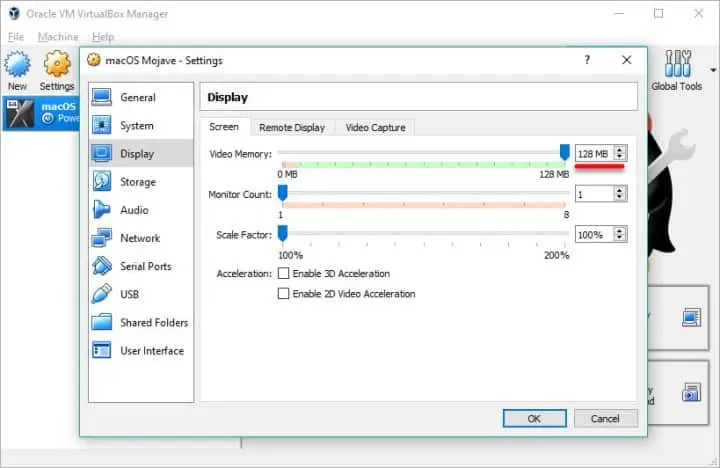
Windows 10 makes a great daily-driver VM. Whether you need a Windows environment for testing software, running Windows-only applications on a Linux host, or just want a sandboxed Windows install, here's how to set it up.
What You'll Need
- A Windows 10 ISO file. You can download one from Microsoft's website. You'll still need a valid license key to activate it.
- At least 2 GB of RAM allocated to the VM (4 GB recommended)
- At least 32 GB of virtual disk space
- 2 CPU cores recommended
Creating the VM
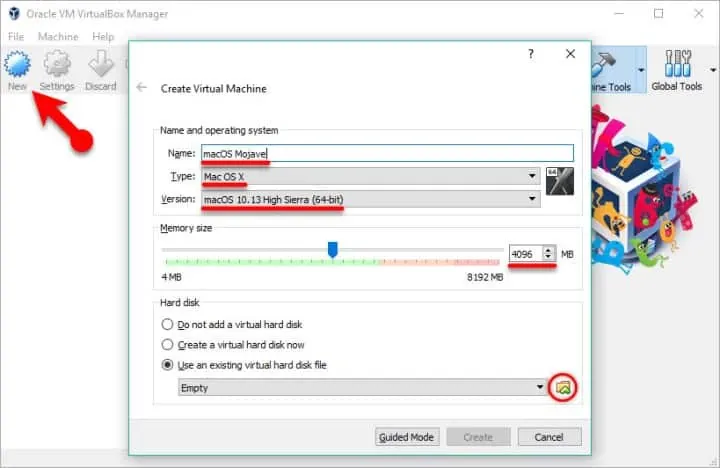
- Open VirtualBox and click New.
- Name your VM (something like "Windows 10 Test"), set Type to Microsoft Windows, and Version to Windows 10 (64-bit).
- Allocate memory — I'd suggest at least 4096 MB if you can spare it.
- Create a virtual hard disk — choose VDI as the disk type, Dynamically allocated, and set the size to at least 32 GB.
- Once the VM is created, go to Settings > Storage, click the empty optical drive, and under Optical Drive, choose your Windows 10 ISO.
Installing Windows 10
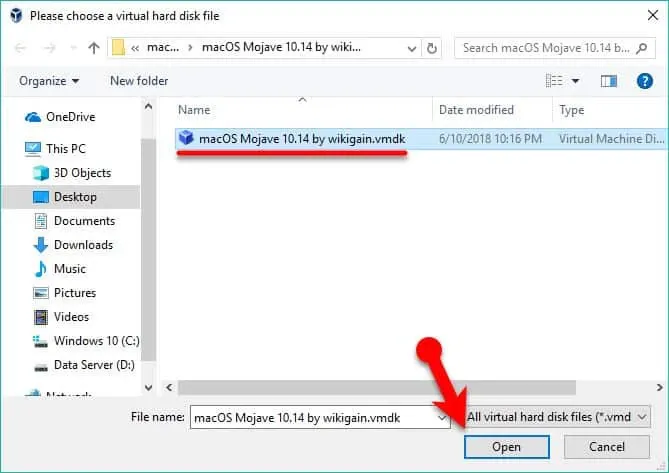
- Select your VM and click Start.
- The VM will boot from the ISO and you'll see the Windows 10 installer.
- Follow the on-screen prompts — select your language, accept the license terms, and choose Custom: Install Windows only (advanced).
- Select the unallocated space and click Next. Windows will handle the partitioning.
- Sit back and wait. The installation will reboot a few times.
Installing VirtualBox Guest Additions
After Windows 10 is installed, you'll want to install Guest Additions. These add drivers for better video performance, enable drag-and-drop between host and guest, shared folders, and seamless mouse integration.
- With the VM running, go to the VirtualBox menu: Devices > Insert Guest Additions CD image.
- In the Windows VM, open File Explorer, go to the CD drive, and run
VBoxWindowsAdditions.exe. - Follow the installer, reboot when prompted.
Now you can enable drag-and-drop and shared clipboard under Devices > Drag and Drop and Devices > Shared Clipboard.
Installing Windows XP on VirtualBox
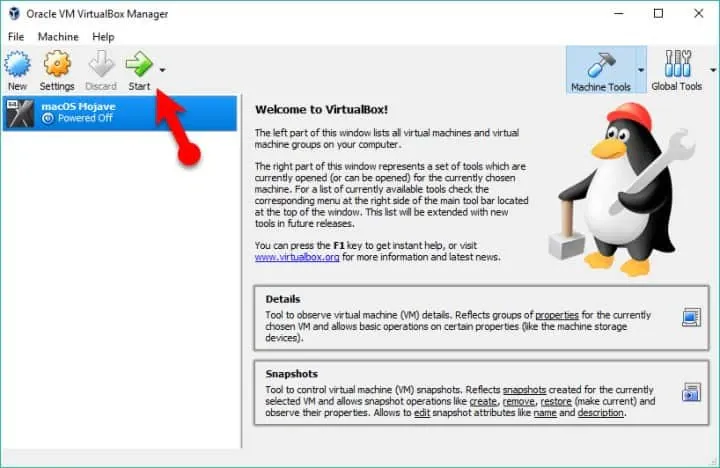
Now for something completely different. Windows XP Service Pack 1 — unpatched and deliberately kept outdated — is a fantastic tool for security research and penetration testing.
Why Install an Outdated OS?
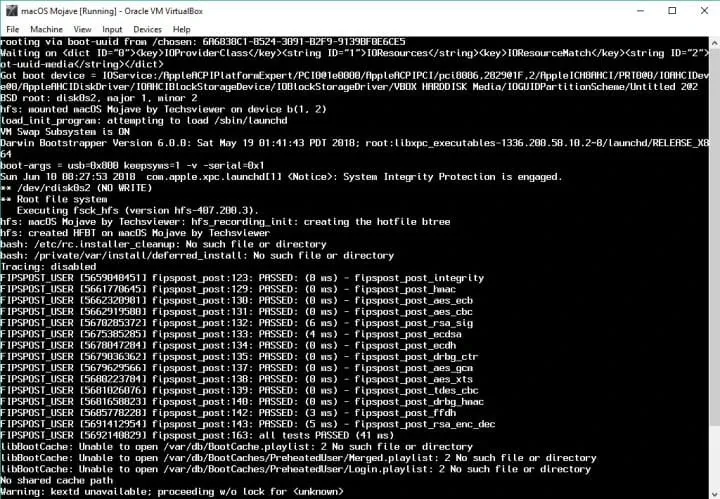
Here's the thing: Windows XP SP1 is vulnerable to a ton of well-documented exploits. That makes it perfect for:
- Learning about vulnerabilities and how they work
- Testing exploit code in a safe environment
- Practicing penetration testing techniques
- Understanding how older malware operated
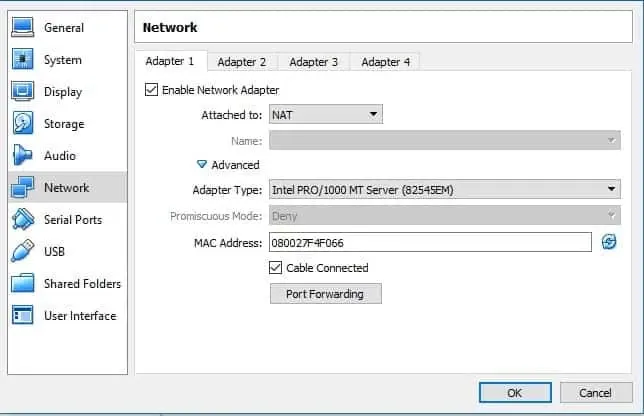
Important caveat: You are NOT going to use this VM for daily work. It's a test machine. If you update the OS, you'll patch the vulnerabilities you're trying to learn about. As an extra precaution, set the network adapter to Internal Network or Host-Only rather than NAT or Bridged, so your vulnerable XP VM isn't accessible from your local network.
What You'll Need
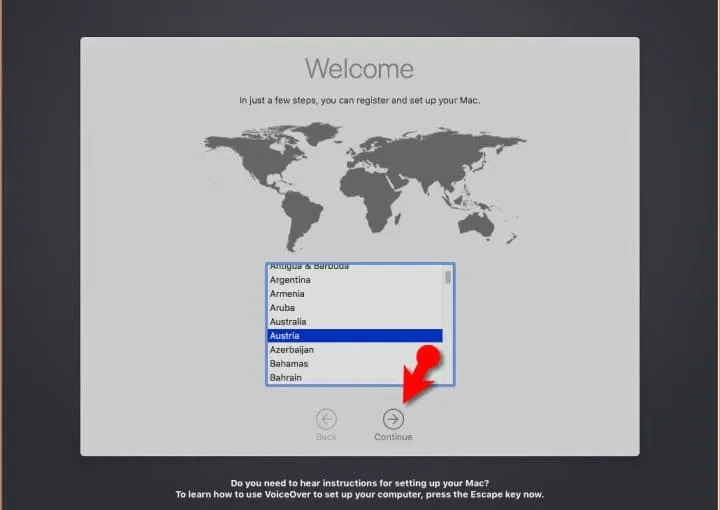
- A Windows XP ISO (SP1 or SP2 without updates). You might need to dig up an old CD or search for an archived copy online.
- At least 512 MB of RAM
- About 10 GB of virtual disk space
Creating the VM
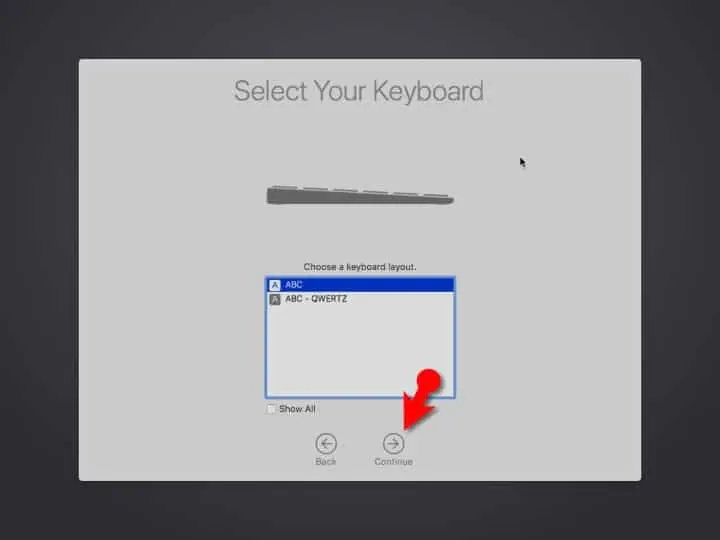
- In VirtualBox, click New.
- Name it "Windows XP Vulnerable", set Type to Microsoft Windows, Version to Windows XP (32-bit).
- Allocate 512 MB to 1 GB of RAM.
- Create a virtual hard disk — VDI, Dynamically allocated, 10 GB is plenty.
- Under Settings > Storage, mount your Windows XP ISO.
Installing Windows XP
- Start the VM — it'll boot from the ISO.
- Press any key to boot from CD when prompted.
- Follow the Windows XP setup. You'll partition the disk (usually just press Enter to use the full space), format it (NTFS fast), and let the installer copy files.
- The machine will reboot. Let it boot from the hard disk this time.
- Complete the regional settings, enter your product key, set up a username, and finish the installation.
Installing Guest Additions
Just like with Windows 10, Guest Additions make the experience much better:
- Devices > Insert Guest Additions CD image
- In the XP VM, browse the CD and run the installer.
- Reboot. Now drag-and-drop and shared folders will work.
Which VM Should You Use?
Honestly, keep both around. Here's when I reach for each one:
\n\n| Scenario | \nUse Windows 10 VM | \nUse Windows XP VM | \n
|---|---|---|
| Testing modern software | \n✓ | \n✗ | \n
| Web development with modern browsers | \n✓ | \n✗ | \n
| Security research / exploit testing | \n✗ | \n✓ | \n
| Network services testing | \n✓ | \nLimited | \n
| Malware analysis (sandboxed) | \nWith care | \n✓ (more vulnerable targets) | \n
| Learning Windows administration | \n✓ | \nOutdated | \n
Pro Tips for VirtualBox
Snapshots are your friend
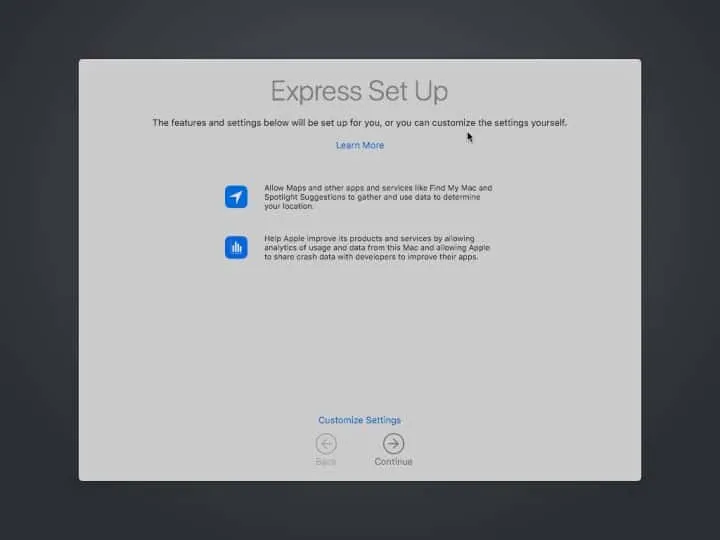
Before you make any major changes to a VM — installing new software, changing settings, testing something risky — take a snapshot. If things go wrong, you can revert in seconds.
Clone VMs for repeatable setups
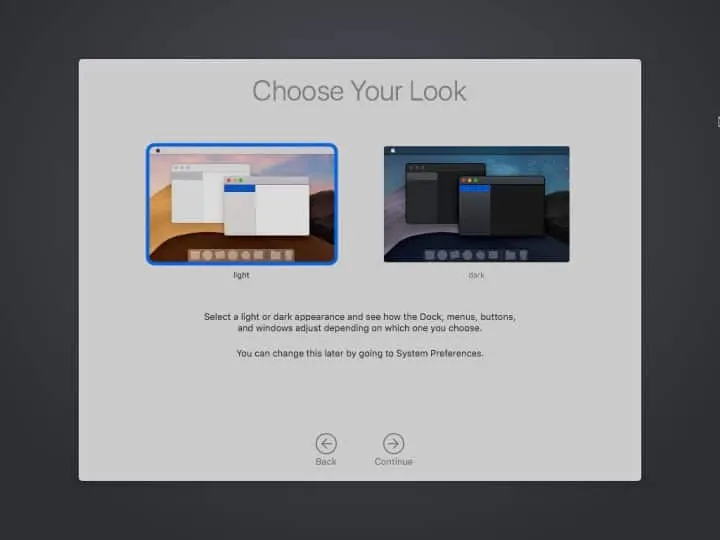
Once you've got a base install of Windows configured exactly how you want it, power off the VM and use Machine > Clone. Now you have a fresh copy to experiment with, and if you break it, you clone another one.
Resource management
- Don't allocate all your RAM to VMs. Leave at least 2-4 GB for your host OS.
- If a VM feels slow, check your host's resource monitor. You might be over-committing.
- VirtualBox can over-commit CPU cores, but RAM is a hard limit — once it's allocated to a VM, the host can't use it.
More in This Series
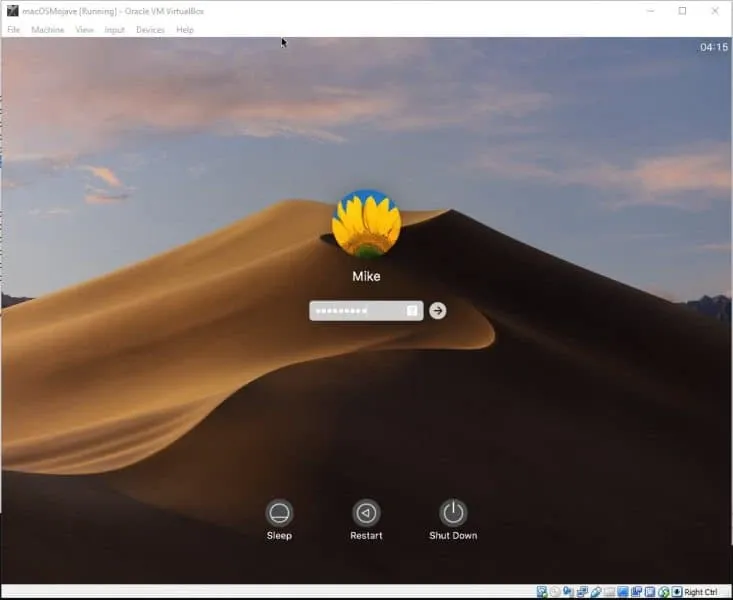
This guide is part of my VirtualBox series. Check out the other tutorials:
- Install Metasploitable2 on VirtualBox
- Install Kali Linux on VirtualBox
- Setting Up a Python Development Environment on VirtualBox
Final Thoughts
VirtualBox is an incredible tool for anyone who works with technology. Whether you're a developer needing a Windows environment on your Mac, a security researcher setting up a lab for testing, or just someone who wants to try Linux without committing to a full install — it's one of those skills that pays for itself over and over.
The two VMs I showed you here — Windows 10 for everyday tasks and Windows XP for security research — cover most of what I do in my own lab. Set them up, take some snapshots, and don't be afraid to break things. That's how you learn.
