Adding a real-time messaging system to an existing Laravel app used to mean building everything from scratch — WebSocket server, message models, notification badges, typing indicators, the works. Then I found Chatify, a Laravel package from Munaf Aqeel that gives you a full-featured messaging system in a few commands. For more details, check out Add Chatify to existing laravel app. For more details, check out Unlocking Your Internal Drives After Windows 11 Installation. For more details, check out How to Install macOS in VirtualBox on Windows (2026 Guide).
I ran into my fair share of integration headaches getting it to play nicely with an existing app's layout and authentication system. Here's the exact process I use, including all the file edits needed.
What You'll Get
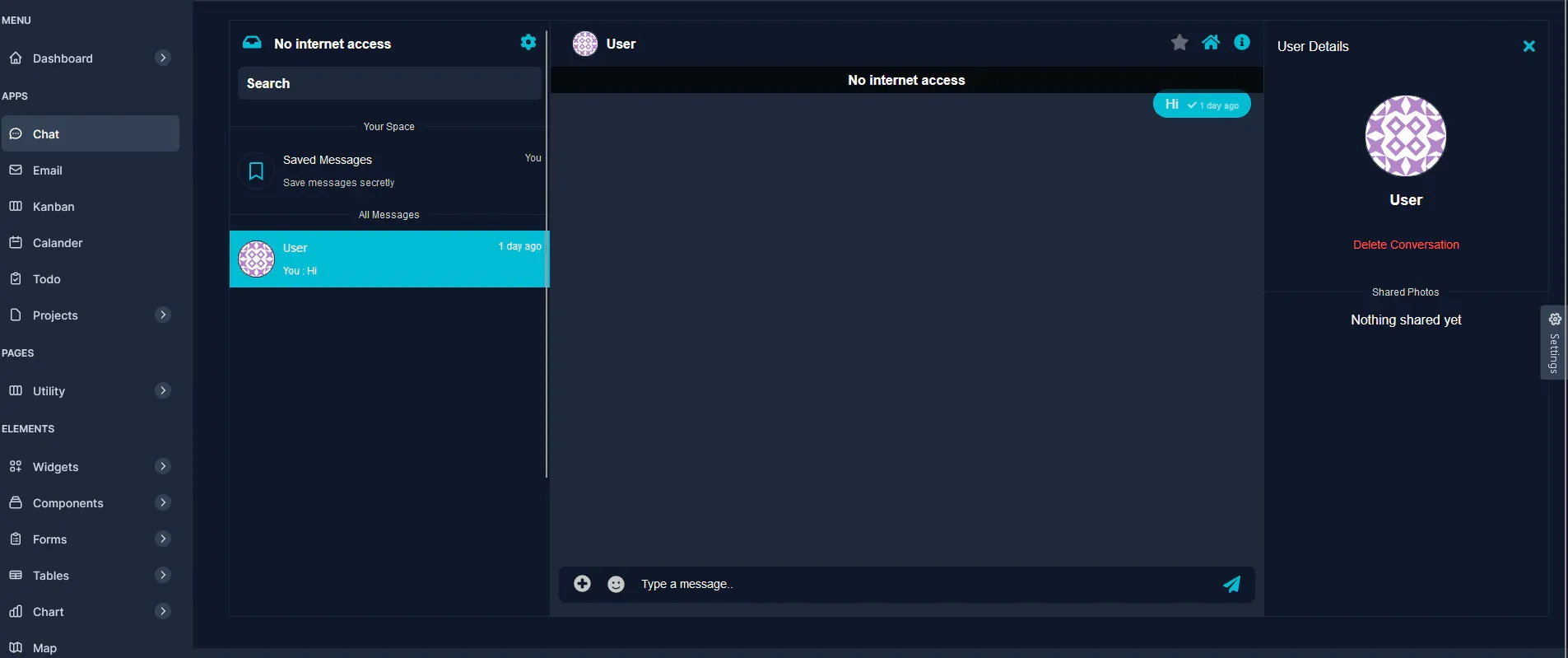
Chatify provides out of the box: - Private 1-to-1 messaging between users - Real-time message delivery via Pusher - Message favorites and saved messages - Typing indicators - Dark mode support - File and image attachments - emoji picker
Prerequisites
- An existing Laravel app (any version from Laravel 9 through 11)
- A Pusher account (free tier — sign up at pusher.com)
- Composer installed
- User authentication already set up (Laravel Breeze, Jetstream, or custom)
Step 1: Set Up Pusher
Chatify uses Pusher for real-time message delivery. Head to your Pusher dashboard and create a new app. Select Laravel as your backend (or jQuery + Laravel — Chatify bundles its own JS). Note down your app credentials:
- App ID
- Key
- Secret
- Cluster

In your app settings, make sure Client Events are enabled. Chatify uses client events for typing indicators.

Step 2: Configure Pusher in Your Laravel App
Add these to your .env file:
BROADCAST_DRIVER=pusher\nPUSHER_APP_ID=your-app-id\nPUSHER_APP_KEY=your-app-key\nPUSHER_APP_SECRET=your-app-secret\nPUSHER_APP_CLUSTER=us2\nCHATIFY_ROUTES_PREFIX=chat\nMake sure config/broadcasting.php is set up for Pusher. Laravel 11's default config handles this, but verify the connections.pusher section reads from environment variables:
'pusher' => [\n 'driver' => 'pusher',\n 'key' => env('PUSHER_APP_KEY'),\n 'secret' => env('PUSHER_APP_SECRET'),\n 'app_id' => env('PUSHER_APP_ID'),\n 'options' => [\n 'cluster' => env('PUSHER_APP_CLUSTER'),\n 'useTLS' => true,\n ],\n],\nStep 3: Install Chatify
Install the package via Composer:
composer require munafio/chatify\nPublish the assets, config, and migrations:
php artisan chatify:install\nThis command: - Publishes the Chatify config to config/chatify.php - Publishes views to resources/views/vendor/Chatify/ - Publishes assets to public/js/chatify/ and public/css/chatify/ - Creates migration files for the messages table - Creates the storage symlink for attachments
Run the migrations:
php artisan migrate\nStep 4: Integrate Chatify into Your App Layout
This is where most people get stuck. Chatify ships with its own HTML structure, but you need to wrap it inside your existing app layout.
Edit the Main Chatify View
Open resources/views/vendor/Chatify/pages/app.blade.php and wrap the entire content with your app's layout tags:
<x-app-layout>\n\n <div class="space-y-8">\n <div class="flex lg:space-x-5 chat-height overflow-hidden relative rtl:space-x-reverse">\n @include('Chatify::layouts.headLinks')\n <div class="messenger">\n {{-- Users/Groups list side --}}\n <div class="messenger-listView {{ Auth::user()->id ? 'conversation-active' : '' }}">\n <!-- ... keep the full existing content ... -->\n </div>\n\n {{-- Messaging side --}}\n <div class="messenger-messagingView">\n <!-- ... keep the full existing content ... -->\n </div>\n\n {{-- Info side --}}\n <div class="messenger-infoView app-scroll">\n <!-- ... keep the full existing content ... -->\n </div>\n </div>\n </div>\n </div>\n</x-app-layout>\n\n@include('Chatify::layouts.modals')\n@include('Chatify::layouts.footerLinks')\nThe key change is adding <x-app-layout>...</x-app-layout> around the Chatify content. Remove Chatify's default <html>, <head>, and <body> tags since your layout provides those.
Update headLinks
Open resources/views/vendor/Chatify/layouts/headLinks.blade.php and simplify it to only include what's needed — your app layout already provides the HTML boilerplate:
<title>{{ config('chatify.name') }}</title>\n\n{{-- Meta tags --}}\n<meta name="viewport" content="width=device-width, initial-scale=1">\n<meta name="id" content="{{ Auth::user()->id }}">\n<meta name="messenger-color" content="{{ Auth::user()->messenger_color }}">\n<meta name="messenger-theme" content="{{ Auth::user()->dark_mode }}">\n<meta name="csrf-token" content="{{ csrf_token() }}">\n<meta name="url" content="{{ url('').'/'.config('chatify.routes.prefix') }}" data-user="{{ Auth::user()->id }}">\n\n{{-- Scripts --}}\n<script src="https://code.jquery.com/jquery-3.6.0.min.js"></script>\n<script src="{{ asset('js/chatify/font.awesome.min.js') }}"></script>\n<script src="{{ asset('js/chatify/autosize.js') }}"></script>\n<script src='https://unpkg.com/nprogress@0.2.0/nprogress.js'></script>\n\n{{-- Styles --}}\n<link rel='stylesheet' href='https://unpkg.com/nprogress@0.2.0/nprogress.css'/>\n<link href="{{ asset('css/chatify/style.css') }}" rel="stylesheet" />\n<link href="{{ asset('css/chatify/'. (Auth::user()->dark_mode > 0 ? 'dark' : 'light').'.mode.css') }}" rel="stylesheet" />\n\n<style>\n :root {\n --primary-color: {{ Auth::user()->messenger_color }};\n }\n</style>\nUpdate the Modal
In resources/views/vendor/Chatify/layouts/modals.blade.php, find the "Update" button and add a dynamic background color:
<label class="app-btn a-btn-primary update"\n style="background-color:{{ Auth::user()->messenger_color }}">\nStep 5: Mount Chatify in Your App
To display Chatify on a page, add this to any blade view:
@include('vendor.Chatify.pages.app')\nOr create a dedicated route that loads Chatify. Add to routes/web.php:
Route::middleware(['auth'])->group(function () {\n Route::get('/chat', function () {\n return view('chat');\n })->name('chat');\n});\nAnd the view at resources/views/chat.blade.php:
@extends('layouts.app')\n\n@section('title', 'Messages')\n\n@section('content')\n @include('vendor.Chatify.pages.app')\n@endsection\nStep 6: Configure the Route Prefix
Open config/chatify.php and set the prefix to match your routing:
'prefix' => env('CHATIFY_ROUTES_PREFIX', 'chat'),\nThis tells Chatify to use /chat as the base URL for its API routes (send message, fetch conversations, etc.).
Step 7: Test It
Load your app at /chat. You should see Chatify's messaging interface embedded in your app layout.
If messages aren't sending in real-time, check:
- Pusher credentials — double-check your
.envvalues - Queue driver — if
QUEUE_CONNECTION=sync, broadcasts happen inline. For production, usedatabaseorredis - Cache — clear it:
php artisan cache:clear\nphp artisan view:clear\nphp artisan optimize:clear\nTroubleshooting Common Integration Issues
Chatify Shows Blank White Page
Your layout styles are likely conflicting. Open browser DevTools and check if the .messenger container has display: none or zero height. This happens when Tailwind's prose class or similar resets overlap with Chatify's CSS.
Fix: Scope your app's CSS or increase specificity on Chatify's containers.
Pusher Not Connecting in Real-Time
Check the browser console for CORS errors. If you're using php artisan serve (localhost), Pusher should connect fine. For production behind a proxy, ensure WebSocket traffic isn't blocked.
Also verify you enabled Client Events in the Pusher dashboard — Chatify needs them for typing indicators.
Chatify Routes Returning 404
The chatify:install command registers routes automatically. If you see 404 errors, check that Chatify's service provider is registered in bootstrap/providers.php (Laravel 11) or config/app.php (Laravel 10 and below):
// Laravel 11: bootstrap/providers.php\nreturn [\n App\\Providers\\AppServiceProvider::class,\n Chatify\\ChatifyServiceProvider::class, // Add this\n];\n\n// Laravel 10 and below: config/app.php\n'providers' => [\n // ...\n Chatify\\ChatifyServiceProvider::class,\n],\nMessages Persist but Don't Broadcast
Run php artisan queue:listen in another terminal while testing. Without a running queue worker, broadcast events sit in the queue and never reach Pusher.
Avatar Images Not Showing
Run the storage link command:
php artisan storage:link\nChatify stores avatars in the storage/app/public directory, and the symlink makes them accessible from the web.
Laravel 11 Specific Notes
Chatify was originally built for older Laravel versions, but it works fine with Laravel 11 with a few adjustments:
- Service Provider Registration: Laravel 11 uses
bootstrap/providers.phpinstead ofconfig/app.php. AddChatify\\ChatifyServiceProvider::classthere. - Middleware: Laravel 11's middleware is registered in
bootstrap/app.php. Chatify bundles its own middleware — no changes needed there. - Vite vs Mix: Chatify expects Mix-compiled assets. For Laravel 11 apps using Vite, copy Chatify's published assets to
public/as-is — the package already places them there viachatify:install.
Wrapping Up
Adding Chatify to an existing Laravel app takes about 30 minutes once you know which files to edit. The trickiest part is integrating the views with your existing layout, but the pattern is consistent: wrap the app view in your layout, trim the headLinks, and configure the route prefix.
I've used this setup on half a dozen projects now and it's solid. The package handles everything from message threading to file attachments, so you don't have to reinvent the messaging wheel. Give it a try.