


If you've used Docker for any length of time, you've probably internalized the vocabulary. Images. Containers. Dockerfiles. docker run -d --name my-app nginx. It works. You ship code. Everyone's happy.
But here's a question: what actually happens when you type docker run?
Most people answer with something about "lightweight VMs" or "process isolation." That's correct in spirit but useless in detail. The real answer involves several Linux kernel primitives that have existed for over a decade. Docker didn't invent containers. It packaged them.
In this post, I'm going to walk you through building a minimal container engine using raw Linux primitives. No Docker. No Podman. No LXC. Just the kernel, a C compiler and a few Go scripts. By the end, you'll understand isolation at the syscall level — and you'll never look at docker run the same way again.
I won't be building something production-ready. This is a learning tool. The goal is understanding, not shipping. If you want a real container runtime after this, go read the runC source. You'll actually understand it.
What a Container Actually Is
Before we touch a terminal, let's define what we're building. A container is a process with a lie told to it by the kernel.
That lie comes in three parts:
- Visibility. The process can only see what the kernel lets it see — other processes, network interfaces, files, user IDs. This is namespaces.
- Resources. The process can only consume what the kernel allocates — CPU shares, memory limits, I/O bandwidth. This is cgroups.
- Filesystem. The process thinks it has a root filesystem, but it's actually looking at a directory (or a stack of directory layers) we prepared. This is chroot/pivot_root plus a union filesystem.
That's it. Three lies. Together they create the illusion of a dedicated machine. Docker's entire value proposition — the CLI, the registry, the Dockerfile format, the networking bridge — sits on top of these three primitives. Everything else is tooling.
Lie #1: Namespaces — Controlling What a Process Can See
Linux namespaces partition kernel resources so one set of processes sees a different reality from another. Modern Linux has eight namespace types: mount, PID, network, IPC, UTS, user, cgroup, and time. Containers typically rely most heavily on mount, PID, network, IPC, UTS, and user namespaces.
The Six Namespaces That Matter
| Namespace | What It Isolates | Clone Flag | Why Containers Need It |
|---|---|---|---|
| PID | Process IDs | CLONE_NEWPID |
So PID 1 inside the container isn't the host's init process |
| Mount | Filesystem mount points | CLONE_NEWNS |
So the container has its own /proc, /sys, and root filesystem |
| Network | Network interfaces, routing tables, firewall rules | CLONE_NEWNET |
So the container gets its own eth0 and IP address |
| UTS | Hostname and domain name | CLONE_NEWUTS |
So hostname inside the container returns something different |
| IPC | SysV message queues, shared memory, semaphores | CLONE_NEWIPC |
So processes can't read shared memory segments from the host |
| User | UID/GID mappings | CLONE_NEWUSER |
So root inside the container is unprivileged outside |
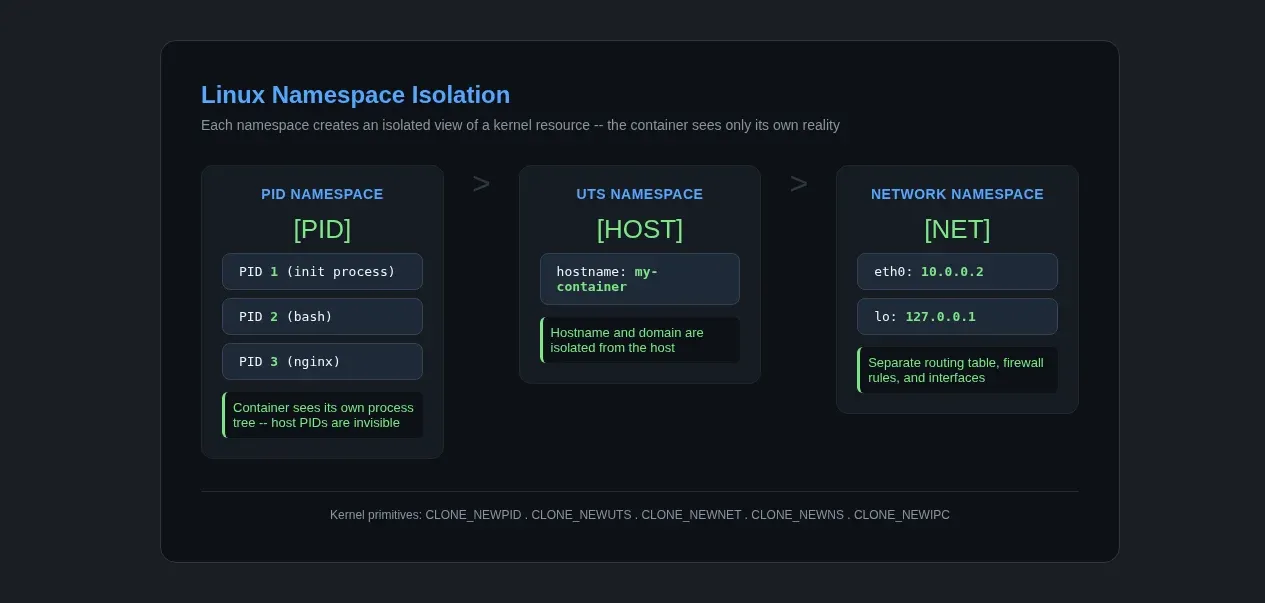
The PID namespace is the one that surprises people most. When you create a new PID namespace, the first process inside gets PID 1. It looks like init. If that process dies, the kernel sends SIGKILL to every other process in the namespace — exactly like the host's init. This is why Docker containers stop when the main process exits.
Here's the simplest possible namespace demonstration. Save this as ns_demo.go:
package main

import (
    "fmt"
    "os"
    "os/exec"
    "syscall"
)

func main() {
    if len(os.Args) < 2 {
        fmt.Println("Usage: ns_demo <command> [args...]")
        os.Exit(1)
    }

    cmd := exec.Command(os.Args[1], os.Args[2:]...)
    cmd.Stdin = os.Stdin
    cmd.Stdout = os.Stdout
    cmd.Stderr = os.Stderr

    // Run the command in new namespaces
    cmd.SysProcAttr = &syscall.SysProcAttr{
        Cloneflags: syscall.CLONE_NEWUTS |  // new hostname
            syscall.CLONE_NEWPID |          // new PID space
            syscall.CLONE_NEWNS,            // new mount space
    }

    if err := cmd.Run(); err != nil {
        fmt.Fprintf(os.Stderr, "Error: %v\n", err)
        os.Exit(1)
    }
}
Build it, then run it with a shell:
go build -o ns_demo ns_demo.go
sudo ./ns_demo /bin/bash
Inside this shell, run hostname my-container and then hostname. You'll see my-container. Now open another terminal and run hostname — still your actual hostname. The UTS namespace isolated it. Run echo $$ — you'll see 1. The PID namespace gave you your own process tree.
You're already running a container. A terrible one with no filesystem isolation and no resource limits, but a container nonetheless. This is what Docker does under the hood — it just wraps it with a lot of tooling.
Lie #2: cgroups — Controlling What a Process Can Use
Namespaces control visibility. cgroups (control groups) control consumption. Without cgroups, a container process can eat 100% of the host CPU, fill all available RAM, and saturate the disk. Namespaces won't stop it.
cgroups are organized as a filesystem, typically mounted at /sys/fs/cgroup. In cgroup v1, controllers such as CPU, memory, blkio, and pids often had separate hierarchies. In cgroup v2, they live under a unified hierarchy. Creating a new cgroup means making a directory. Setting limits means writing to files inside that directory.
The cgroup v2 interface, available since the Linux 4.x era and now common on modern distributions, is simpler than cgroup v1 because controllers live under a unified hierarchy. Everything lives under a single tree.
Note: these commands assume a simple cgroup v2 setup where root can create and write to a child cgroup under /sys/fs/cgroup. On many systemd-managed distributions, direct writes may fail unless the process is running inside a delegated cgroup or scope.
Here's how you'd limit a container to 100MB of RAM and half a CPU core:
# Create a new cgroup for the container
CGROUP=/sys/fs/cgroup/my-container
sudo mkdir -p "$CGROUP"

# Limit memory to 100 MB
echo "104857600" | sudo tee "$CGROUP/memory.max"

# Limit CPU to 50% of one core (50000 microseconds per 100ms period)
echo "50000 100000" | sudo tee "$CGROUP/cpu.max"

# Limit to 10 PIDs (prevents fork bombs inside the container)
echo "10" | sudo tee "$CGROUP/pids.max"

# Move the container process into the cgroup
echo $CONTAINER_PID | sudo tee "$CGROUP/cgroup.procs"
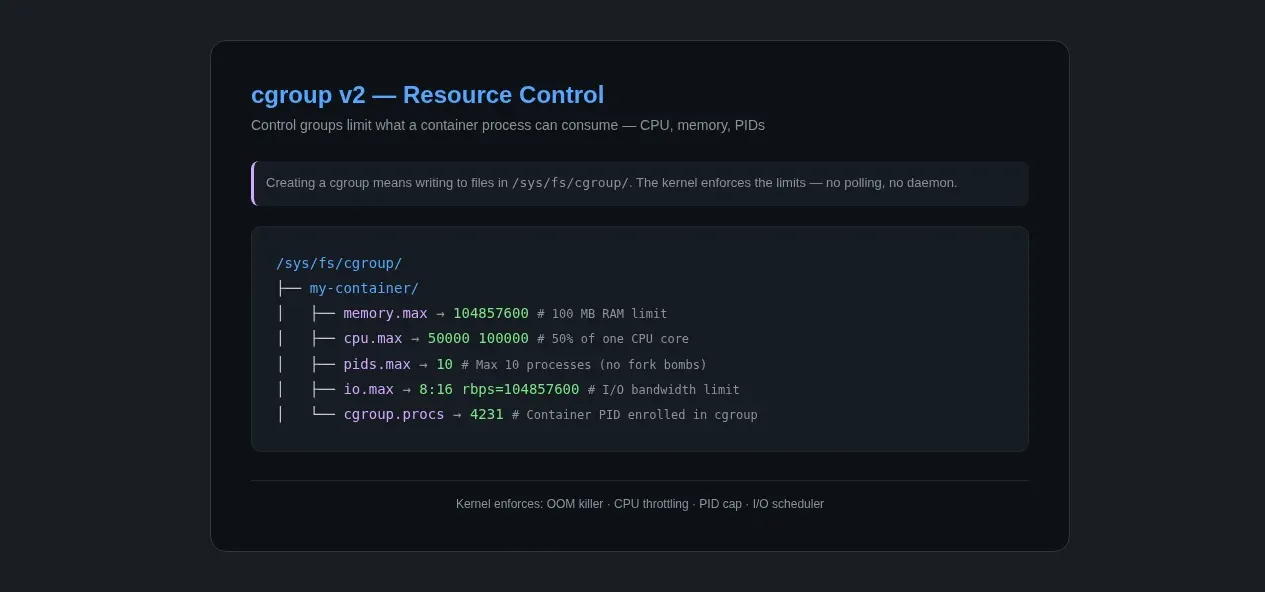
On a compatible cgroup v2 setup, those writes are enough to limit the container to 100MB of RAM, 50% of one CPU core, and a maximum of 10 processes. Docker's --memory, --cpus, and --pids-limit flags map directly to these files.
The cgroup is a teaching tool in itself. If you were building a real container engine, you'd create a new cgroup, write the limits, then fork the container process with its PID added to cgroup.procs. The kernel handles enforcement. If the container exceeds its memory limit, the OOM killer terminates the largest process inside. No polling. No daemon watching. Just the kernel saying "no."
Lie #3: The Filesystem — chroot, pivot_root, and Union Mounts
Namespaces control what the process sees. cgroups control what it uses. But the process can still see your host's entire filesystem — your SSH keys, your /etc/passwd, your home directory. That's a security disaster.
Phase 1: chroot (The Simple Way)
The chroot syscall changes the root directory of a process. Everything under / becomes the contents of whatever directory you point at.
func chrootInto(newRoot string) error {
    // chroot to the new root
    if err := syscall.Chroot(newRoot); err != nil {
        return err
    }
    return syscall.Chdir("/")
}
Give this an Ubuntu rootfs (download it with debootstrap) and the process thinks it's running on a dedicated Ubuntu machine. But chroot was never designed as a security boundary. A root process inside a chroot can escape in several well-documented ways. It's fine for learning but not for production.
Phase 2: pivot_root (The Proper Way)
pivot_root is the syscall designed for containers. It moves the current root filesystem to a subdirectory and places a new filesystem at /. Unlike chroot, it properly detaches the old root so the process can't escape.
func pivotRoot(newRoot string) error {
    // Bind mount newRoot to itself (required by pivot_root)
    if err := syscall.Mount(newRoot, newRoot, "", syscall.MS_BIND|syscall.MS_REC, ""); err != nil {
        return fmt.Errorf("bind mount rootfs: %w", err)
    }

    // Create a directory for the old root
    putOld := filepath.Join(newRoot, ".pivot_root")
    if err := os.MkdirAll(putOld, 0700); err != nil {
        return fmt.Errorf("mkdir putOld: %w", err)
    }

    // pivot_root: swap the root filesystem
    if err := syscall.PivotRoot(newRoot, putOld); err != nil {
        return fmt.Errorf("pivot_root: %w", err)
    }

    // Change working directory to the new root
    if err := syscall.Chdir("/"); err != nil {
        return fmt.Errorf("chdir /: %w", err)
    }

    // Unmount the old root so the process can't escape
    putOld = "/.pivot_root"
    if err := syscall.Unmount(putOld, syscall.MNT_DETACH); err != nil {
        return fmt.Errorf("unmount old root: %w", err)
    }
    return os.Remove(putOld)
}
This is what Docker does. It's also what LXC and runC do. The pattern is identical across runtimes because there's only one kernel API for this job.
Phase 3: OverlayFS (Where Images Come From)
Your container has a root filesystem — but where did that filesystem come from? Docker "pulls images." What's actually happening?
A Docker image is a stack of read-only layers, each representing a filesystem diff. When you RUN apt install nginx in a Dockerfile, it creates a new layer containing only the files that command added or changed. When you run the container, Docker combines those layers into a single view using a union filesystem — typically OverlayFS on modern kernels.
Here's how OverlayFS works:
# Create the directory structure
mkdir lower upper work merged

# lower = read-only base (e.g., Ubuntu rootfs)
# upper = writable layer (container changes go here)
# work  = internal OverlayFS scratch space
# merged = the unified view the container sees

# Mount the overlay
sudo mount -t overlay overlay \
    -o lowerdir=lower,upperdir=upper,workdir=work \
    merged

# Now 'merged' shows lower + upper combined
# Reads prefer upper; writes go to upper (copy-on-write)
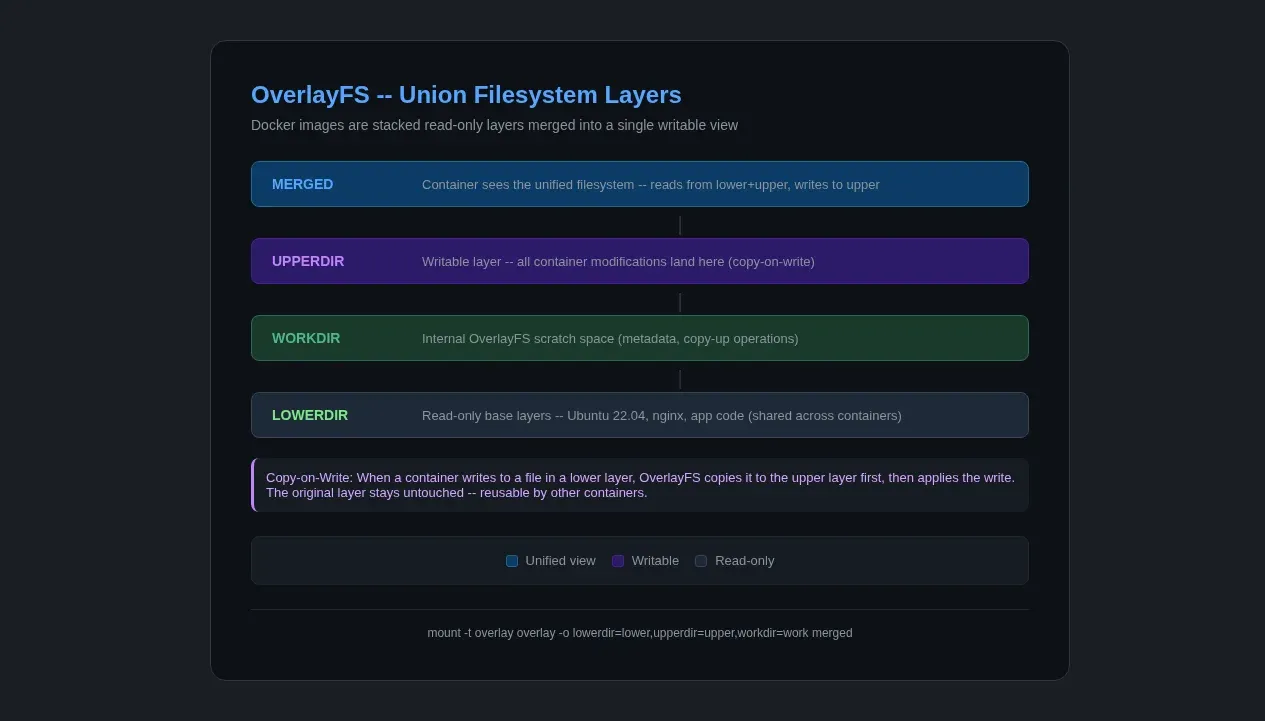
When you docker pull ubuntu:22.04, you're downloading compressed filesystem layer blobs, usually tar-based, along with metadata and digests. When you docker run, Docker mounts them with OverlayFS and passes the merged directory as the root filesystem to pivot_root. That's the whole image system. No magic. Just a clever filesystem trick that's been in the Linux kernel since 2014.
Putting It All Together: The Minimal Container Engine
Let's assemble what we've learned. Here's the flow our engine follows:
- Prepare the rootfs. Either unpack a tarball or set up an OverlayFS mount
- Create cgroup limits. Write to
/sys/fs/cgroup/my-container/ - Fork a child process with namespace flags (
CLONE_NEWPID | CLONE_NEWNET | CLONE_NEWNS | CLONE_NEWUTS | CLONE_NEWIPC) - Inside the child: call
pivot_rootto the prepared rootfs - Mount
/procsopsand friends work inside the container - Add the child PID to the cgroup for resource enforcement
- Exec the container command (e.g.,
/bin/bash)
This is a simplified teaching demo. It shows the core mechanics, but it is not a portable or production-quality runtime. In particular, cgroup setup may differ on systemd-managed hosts, and the child process may start before all resource limits are fully applied.
Here's a complete Go program that does this. It's under 200 lines and runs a real container:
package main

import (
    "fmt"
    "os"
    "os/exec"
    "path/filepath"
    "syscall"
)

func main() {
    if len(os.Args) < 2 {
        fmt.Println("Usage: mini-container <command> [args...]")
        os.Exit(1)
    }

    rootfs := "/tmp/mini-container-rootfs"
    cgroupPath := "/sys/fs/cgroup/mini-container"

    // 1. Prepare rootfs (requires pre-existing directory or tarball)
    if _, err := os.Stat(rootfs); os.IsNotExist(err) {
        fmt.Fprintf(os.Stderr, "Rootfs not found at %s\n", rootfs)
        fmt.Fprintf(os.Stderr, "Create one with: sudo debootstrap stable %s\n", rootfs)
        os.Exit(1)
    }

    // 2. Set up cgroup
    if err := setupCgroup(cgroupPath); err != nil {
        fmt.Fprintf(os.Stderr, "cgroup setup failed: %v\n", err)
        os.Exit(1)
    }

    // 3. Fork the container process
    cmd := exec.Command("/proc/self/exe", append([]string{"init"}, os.Args[1:]...)...)
    cmd.Stdin = os.Stdin
    cmd.Stdout = os.Stdout
    cmd.Stderr = os.Stderr

    cmd.SysProcAttr = &syscall.SysProcAttr{
        Cloneflags: syscall.CLONE_NEWPID |
            syscall.CLONE_NEWNET |
            syscall.CLONE_NEWNS |
            syscall.CLONE_NEWUTS |
            syscall.CLONE_NEWIPC,
    }

    if err := cmd.Start(); err != nil {
        fmt.Fprintf(os.Stderr, "Failed to start container: %v\n", err)
        os.Exit(1)
    }

    // 4. Add child to cgroup
    if err := addToCgroup(cgroupPath, cmd.Process.Pid); err != nil {
        fmt.Fprintf(os.Stderr, "Failed to add process to cgroup: %v\n", err)
    }

    if err := cmd.Wait(); err != nil {
        if exitErr, ok := err.(*exec.ExitError); ok {
            os.Exit(exitErr.ExitCode())
        }
        os.Exit(1)
    }
}

// init runs inside the container after namespace creation
func init() {
    if len(os.Args) < 2 || os.Args[1] != "init" {
        return
    }

    rootfs := "/tmp/mini-container-rootfs"

    // pivot_root into the container rootfs
    if err := pivotRoot(rootfs); err != nil {
        fmt.Fprintf(os.Stderr, "pivot_root failed: %v\n", err)
        os.Exit(1)
    }

    // Mount /proc
    if err := syscall.Mount("proc", "/proc", "proc", 0, ""); err != nil {
        fmt.Fprintf(os.Stderr, "mount /proc failed: %v\n", err)
    }

    // Execute the requested command
    cmd := exec.Command(os.Args[2], os.Args[3:]...)
    cmd.Stdin = os.Stdin
    cmd.Stdout = os.Stdout
    cmd.Stderr = os.Stderr

    if err := cmd.Run(); err != nil {
        if exitErr, ok := err.(*exec.ExitError); ok {
            os.Exit(exitErr.ExitCode())
        }
        os.Exit(1)
    }
    os.Exit(0)
}

func pivotRoot(newRoot string) error {
    if err := syscall.Mount(newRoot, newRoot, "", syscall.MS_BIND|syscall.MS_REC, ""); err != nil {
        return err
    }
    putOld := filepath.Join(newRoot, ".pivot_root")
    os.MkdirAll(putOld, 0700)
    if err := syscall.PivotRoot(newRoot, putOld); err != nil {
        return err
    }
    syscall.Chdir("/")
    putOld = "/.pivot_root"
    syscall.Unmount(putOld, syscall.MNT_DETACH)
    return os.Remove(putOld)
}

func setupCgroup(path string) error {
    os.MkdirAll(path, 0755)
    // Memory limit: 100 MB
    os.WriteFile(filepath.Join(path, "memory.max"), []byte("104857600"), 0644)
    // CPU limit: 50% of a core
    os.WriteFile(filepath.Join(path, "cpu.max"), []byte("50000 100000"), 0644)
    // PID limit: 10
    os.WriteFile(filepath.Join(path, "pids.max"), []byte("10"), 0644)
    return nil
}

func addToCgroup(path string, pid int) error {
    return os.WriteFile(
        filepath.Join(path, "cgroup.procs"),
        []byte(fmt.Sprintf("%d", pid)),
        0644,
    )
}
To use it:
# Step 1: Create a root filesystem
sudo debootstrap stable /tmp/mini-container-rootfs

# Step 2: Build and run the container
go build -o mini-container main.go
sudo ./mini-container /bin/bash

# You're now root in a container with:
# - Its own PID namespace (ps aux shows only your processes)
# - Its own mount namespace (/ is the debootstrap rootfs)
# - Memory capped at 100 MB
# - CPU capped at 50%
# - Max 10 processes
That's a container. Not a complete one — there's no networking, no seccomp profile, no image pulling, no volume mounts. But every one of those features is just another syscall layered on top.
What Docker Adds (And Why You Should Still Use It)
After building this, you might wonder why anyone uses Docker at all. The short answer: you don't want to manage overlay mounts by hand. You don't want to write Go code every time you need a container. Docker gives you:
- The registry.
docker pull nginxdownloads image layer blobs, verifies digests, and unpacks the filesystem layers. Building that from scratch is hundreds of lines of HTTP + tar + hash verification code. - The networking bridge.
docker network createsets up bridge interfaces, iptables rules, and DNS resolution. Raw network namespaces give you only a loopback interface. Getting packets in and out requiresvethpairs and manual routing. - The image cache. Docker tracks which layers you've already downloaded and reuses them. An
nginx:latestbase image pulled once is shared across every container that uses it. OverlayFS makes this efficient at the filesystem level, but Docker's daemon tracks metadata so you don't have to. - seccomp and capabilities. Docker runs containers with a reduced default capability set and applies a default seccomp profile based on an allowlist, blocking many higher-risk syscalls by default. Your
mini-containerabove runs with full root capabilities. That's fine for learning; it's a disaster in production.
The point of building the minimal version isn't to replace Docker. It's to understand what Docker actually does. When a production container won't start, you'll know to check /proc/<pid>/ns/ to see which namespaces are active. When memory limits aren't working, you'll know to look at cgroup.procs. When a file written inside a container disappears after restart, you'll understand that it went to the upper OverlayFS layer and the container runtime cleaned it up.
How I Use This Knowledge in My Own Setup
I run Docker Compose on my homelab mini PC for Plex, n8n, and about a dozen other services. Before I understood the internals, Docker was a black box that either worked or didn't — and when it didn't, I was stuck reading Stack Overflow threads from 2019.
Understanding namespaces and cgroups changed how I debug. When a container leaked memory, I checked /sys/fs/cgroup/system.slice/docker-<id>.scope/memory.current instead of guessing. When networking broke, I inspected the veth pairs instead of restarting the Docker daemon. When a container couldn't write files, I checked the OverlayFS upper directory permissions instead of rebuilding the image.
You don't need to build a container engine to use these insights. Just knowing the kernel primitives gives you a troubleshooting map that docker logs doesn't provide.
If you're running a homelab on Proxmox, I covered the full setup in my
 Techie Mike
And if you're experimenting with running workloads on older hardware, my
 Techie Mike
shows what's possible when you understand the hardware-software boundary — which is the same mindset this container deep-dive builds.
The Kernel Is the Platform
Containers aren't lightweight VMs. They're processes with kernel-enforced blindfolds. The magic isn't in Docker Engine or containerd or runC. It's in Linux kernel primitives that have been developed and refined over many years.
Build the minimal version once — even if you never run it again. Once you've called pivot_root by hand and watched a process wake up inside a different filesystem, Docker stops being a mysterious platform and becomes what it actually is: a well-designed convenience layer on top of Linux primitives you can use yourself.
