

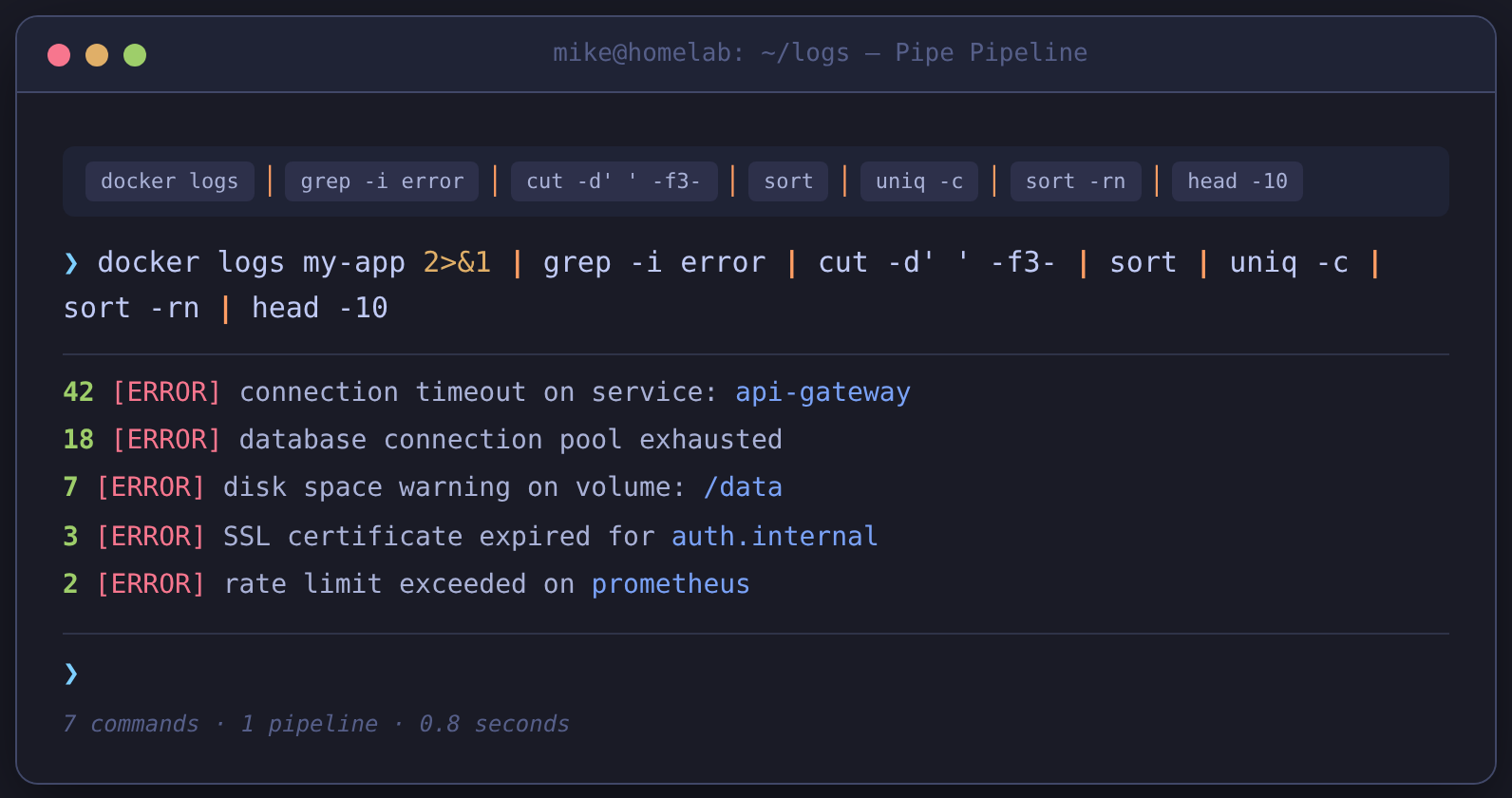
A few weeks ago I was debugging why one of my Docker containers kept crashing. The logs were enormous — thousands of lines. I needed to find error messages, count how often they appeared, and figure out which service was the culprit, preferably sorted by frequency. What would have been 15 minutes of scrolling became this:
docker logs my-app 2>&1 | grep -i error | cut -d' ' -f3- | sort | uniq -c | sort -rn | head -10
One line. Seven commands chained together. The result was on my screen in under a second.
If you're running Docker, understanding how containers actually work makes these pipelines more powerful — the same Linux primitives that power containers also power everything covered here.
I teach Cambridge IGCSE and A-Level Computer Science. Chapter 4 of the IGCSE syllabus covers operating systems, including their role in providing an interface between users and hardware. The syllabus mentions that OSes provide an interface — in my classroom, we expand that into the CLI vs. GUI distinction. What students don't learn is how — the mechanism that makes the CLI more than a slower, uglier version of a GUI.
That mechanism is pipes and redirection. It's the thing that transforms a terminal from a historical curiosity into an automation engine. And it's missing from every CS syllabus I've taught.
File Descriptors: The Invisible Plumbing
Before pipes make sense, you need to understand where a command's output actually goes.
Every normal process started from a shell usually begins with three standard streams open:
| FD | Name | Purpose |
|---|---|---|
| 0 | stdin | Input — what the process reads |
| 1 | stdout | Output — normal results |
| 2 | stderr | Error output — diagnostic messages |
When you run ls, the list of files goes to stdout (FD 1). If ls can't find a directory, the error message goes to stderr (FD 2). Both land in your terminal by default, but they're separate streams.
This distinction matters. Without it, you couldn't separate errors from results. You couldn't log errors while processing output. Every automation trick in the rest of this post depends on understanding that stdout and stderr are two different pipes.
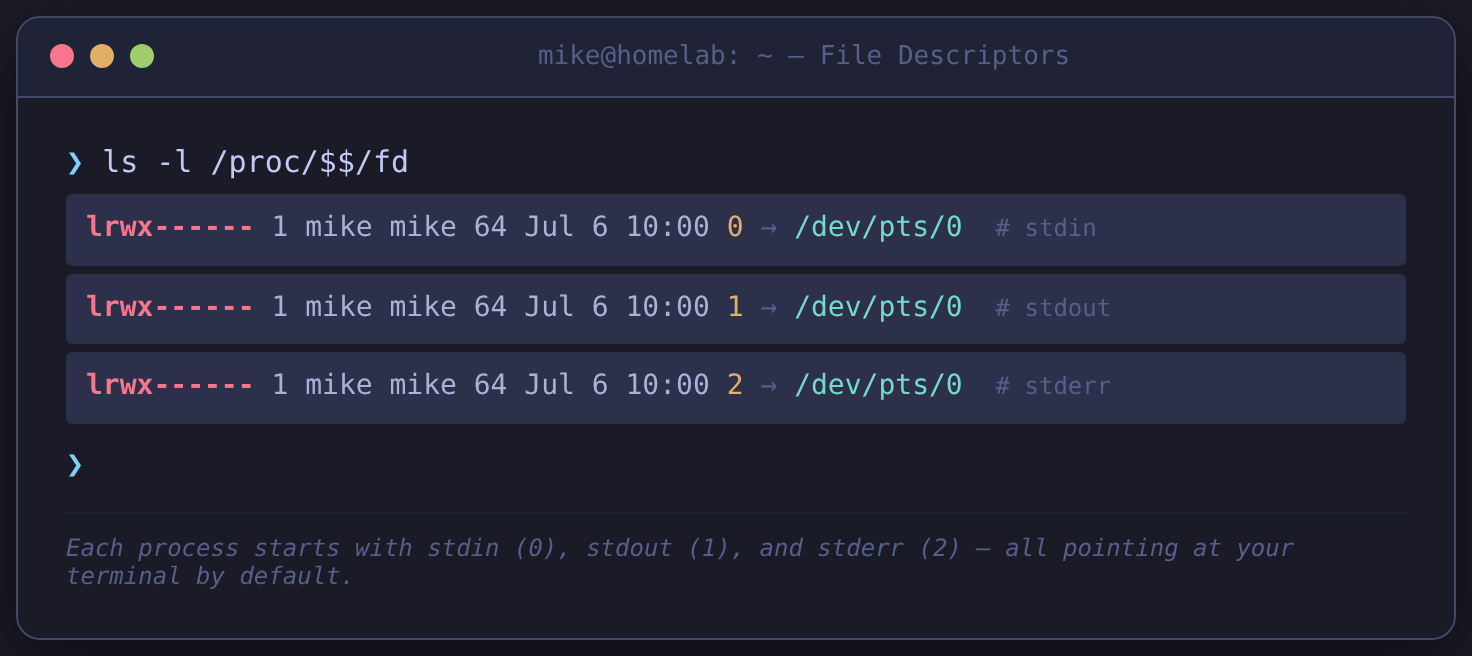
The numbers are not arbitrary. They're hardcoded in the POSIX standard — every Unix-like system since the 1970s uses 0, 1, and 2 for these three streams. On Linux, you can see them yourself:
ls -l /proc/$$/fd
That shows the file descriptors for your current shell process. You'll typically see something like 0 -> /dev/pts/0, 1 -> /dev/pts/0, 2 -> /dev/pts/0 — each pointing at your terminal device. This is why output and errors both appear on screen: they're sent to the same place.
The Pipe: One Command's Output, Another Command's Input
The pipe is usually credited to Douglas McIlroy at Bell Labs, who proposed the idea in a 1964 memo. Ken Thompson implemented it in 1973 — "in one feverish night," McIlroy later wrote — adding the pipe() system call and the | syntax to Unix. The next day, McIlroy recalled, "saw an unforgettable orgy of one-liners as everybody joined in the excitement of plumbing."
The pipe operator | takes stdout from the left command and feeds it to stdin of the right command. No intermediate file. No extra temporary file on disk. Just a kernel buffer connecting two processes.
# Without pipes: two steps, a temp file
ls -l > /tmp/files.txt
wc -l < /tmp/files.txt
rm /tmp/files.txt

# With pipes: one step, no cleanup
ls -l | wc -l
Pipes chain. The output of wc -l can feed into another pipe, and another. There's no practical limit on a modern system — I've used chains of 12+ commands in log analysis scripts and they run just fine. Each stage in a pipeline runs as a separate process; shell built-ins in a pipeline often run in a subshell environment, so very long chains do create process overhead, but for the kind of automation you're doing in a terminal or script, you won't hit it.
A pipe only carries stdout. Stderr still goes to your terminal. This is a feature — you can see error messages while data flows silently through the pipeline.
Redirection: The Six Operators
Redirection sends output to files instead of the terminal, or reads input from files instead of the keyboard. Six operators cover everything you'll need.
> — Write stdout to a file (overwrite)
echo "server online" > status.txt
Creates the file if it doesn't exist. Overwrites it if it does. Use set -o noclobber (or set -C) in your shell to prevent accidental overwrites — then >| forces overwrite when you mean it.
>> — Append stdout to a file
echo "backup completed at $(date)" >> backup.log
Adds to the end. Doesn't touch existing content. This is the one you want for log files.
< — Read stdin from a file
wc -l < access.log
The command reads the file as its stdin. Not the same as passing a filename as an argument — wc -l access.log prints the filename alongside the count; wc -l < access.log only prints the number. This matters in pipelines where you want clean data, not filenames mixed in.
2> — Write stderr to a file
find / -name "*.conf" 2> errors.txt
Only stderr goes to the file. Stdout still appears on your terminal. This is how you collect errors without losing your results.
2>&1 — Merge stderr into stdout
docker logs my-app 2>&1 | grep error
Read right to left: redirect FD 2 (stderr) to wherever FD 1 (stdout) is pointing. After this, both streams go to the same place. The order matters. 2>&1 > file does NOT do what you think — it redirects stderr to whatever stdout was pointing at when that operator was evaluated (your terminal), then redirects stdout to the file. You want > file 2>&1 — redirect stdout first, then point stderr at the same destination. I still get this wrong sometimes and have to test it.
&> — Redirect both stdout and stderr to a file (Bash shorthand)
make all &> build.log
Equivalent to > build.log 2>&1. Cleaner to type. Works in Bash and Zsh but not in plain /bin/sh — if you're writing scripts for maximum portability, use the long form. In practice, most of us are in Bash anyway.
tee: Capturing Mid-Stream
Sometimes you want to see output on screen AND write it to a file. That's tee — named after the T-junction in plumbing.
./long-script.sh | tee output.log
The script's output appears in your terminal and gets written to output.log simultaneously. If you want to append instead of overwrite: tee -a.
Where tee really earns its place is in pipelines with sudo:
echo "new config line" | sudo tee /etc/app/config.conf > /dev/null
sudo echo > file doesn't work because the redirection happens in your shell, before sudo runs. tee runs with elevated privileges and writes the file itself. This is one of those patterns you use once and then keep in your back pocket forever.
xargs: When Pipes Aren't Enough
A pipe feeds stdin. Not all commands read from stdin — many expect arguments. rm, mkdir, mv, cp, docker stop — they take filenames or IDs as arguments, not on stdin.
That's where xargs bridges the gap. It reads stdin and turns each line into an argument for another command.
# Find all .log files and delete them
find . -name "*.log" -print0 | xargs -0r rm

# Stop all Docker containers whose image name contains 'old-'
docker ps --format '{{.ID}} {{.Image}}' | grep 'old-' | awk '{print $1}' | xargs -r docker stop
Without xargs, you'd need a while read loop. With it, you get the same result in one clean pipeline.
If filenames or arguments contain spaces, use xargs -0 with null-delimited input:
find . -name "*.log" -print0 | xargs -0 rm
The -print0 and -0 flags use the null character as a delimiter instead of newlines. Spaces in filenames won't break your pipeline. I learned this the hard way after deleting the wrong file in 2024 — now -print0 | xargs -0 is muscle memory.
Process Substitution: When Two Inputs Collide
diff compares two files. But what if you want to compare the output of two commands — say, ls from two different directories?
diff <(ls /dir1) <(ls /dir2)
<(command) runs the command in a subshell and presents its output as if it were a file. On many Linux systems, the <(...) gets replaced with a path like /dev/fd/63, which diff reads like any other file. Both commands in the example run in separate subshells, simultaneously.
The reverse also works. >(command) lets you send output to a command as if it were a file:
tar czf >(ssh user@remote "cat > backup.tgz") /home/mike/docs
This creates a tar archive and pipes it over SSH — no temporary file on disk. Not something you use daily, but when you need it, nothing else does the job.
Why This Isn't in the CS Syllabus (And Why It Should Be)
In my IGCSE classroom, we go beyond the syllabus — which covers OS interfaces in broad terms — to teach the CLI vs. GUI distinction. Students learn that a CLI exists. They learn it's faster for automation and preferred by technical users.
What they don't learn is the mechanism. Classroom coverage stays at the what — command line interfaces let you type commands — but stops short of the how: the Unix philosophy of small, composable programs connected by pipes.
This matters because pipes and redirection aren't just terminal tricks. They're the embodiment of a design principle that shows up everywhere in computing: composition over monoliths. Microservices pass data through APIs. React components pass props. CI/CD pipelines chain build steps. The pipe operator from 1973 is the same idea, at the operating system level.
When a student understands pipes, they understand why grep, sort, wc, and head are separate programs instead of one giant "log-analyser." Each does one thing. Pipes let you combine them into whatever tool you need, on the fly. No configuration file. No GUI. Just composable building blocks.
Real Automation: What This Actually Looks Like
Theory is fine. Here's what pipes look like in my daily work running a homelab — the same patterns I use across the services
 Techie Mike
Finding what's eating disk space:
du -sh /* 2>/dev/null | sort -rh | head -5
Checking Docker container health at a glance:
docker ps --format '{{.Names}} {{.Status}}' | grep -v 'Up' | tee /tmp/unhealthy.txt
Extracting unique IPs from an nginx access log:
awk '{print $1}' /var/log/nginx/access.log | sort | uniq -c | sort -rn | head -20
Monitoring memory usage across services:
ps -eo pmem,comm --sort=-pmem | head -10
Each of these is a sentence. Subject, verb, object. The pipe is the verb — it connects, filters, sorts. Once you think in pipes, you stop reaching for Python scripts for one-off tasks. The terminal becomes fast enough that the answer is already on your screen by the time you'd have opened an editor.
The Unix Philosophy, in One Keystroke
McIlroy's 1964 memo described a system where programs would be "coupl[ed]... like garden hose — screw in another segment when it becomes necessary to massage data in another way." He was describing the pipe, but he was also describing an approach to software that's outlasted every GUI framework and programming paradigm that's come along since.
The next time you chain five commands with | and get an answer in seconds, you're not just being efficient. You're using a design pattern from 1973 that modern distributed systems are still rediscovering.
And if you're a CS student who just learned what a CLI is, know this: the CLI itself isn't what makes the terminal powerful. It's the pipes. It was always the pipes.